The ComfyUI AI influencer starter guide.
New to ComfyUI and want to make AI influencers? This is the whole map: installing it, getting your first image, fixing broken workflows, choosing model precision, and building a consistent character you can train a LoRA on.
01 install comfyui · 02 launch & update · 03 your first image · 04 custom nodes · 05 fp16 / fp8 / fp4 · 06 what a lora is · 07 train one · 08 build a character · 09 templates & storage
This is the guide for the most common questions from people just starting out. It's not an expert deep-dive — it's the route that works, in the order that keeps you from getting stuck.
One habit before anything else: use an LLM as your help desk. When an install fails or the console throws an error, paste it into ChatGPT, Gemini or Claude and ask it to walk you through the fix. No question is too basic. That's how most people actually learn this stuff, and it fills in every gap this guide skips over.
01Install ComfyUI (or don't)
There are three common ways to get ComfyUI onto a machine with an NVIDIA GPU:
| METHOD | GOOD FOR |
|---|---|
| Terminal (git / pip) | People comfortable on the command line who want full control. |
| ComfyUI Easy Install | Recommended. A GitHub installer that can set up Sage Attention for you. |
| ComfyUI Portable | Simplest: one download, everything self-contained. |
Pro tip: you can install two or three portable copies side by side. Experiment in one; keep another clean so a bad update never takes down your working setup.
What's Sage Attention?
An optimized attention backend that speeds up the heaviest part of transformer models, usually with little or no quality loss. Not every model supports it, but video models like Wan 2.1 / 2.2 get dramatically faster with it — on a recent high-end card you want it. It's awkward to install on Windows by hand, which is exactly why Easy Install's automatic option is worth using.
No GPU? Use RunPod
On a MacBook, an iPad, or a PC without a strong NVIDIA card, don't fight a local install. Rent a cloud GPU on RunPod and run ComfyUI there — roughly $0.50–$2 an hour at the time of recording, and you can rent hardware as fast as a 5090 for under a dollar an hour. Everything else in this guide still applies.
02Launch and update safely
Make sure your NVIDIA drivers are current, then open the Easy Install folder. You'll see several launchers:
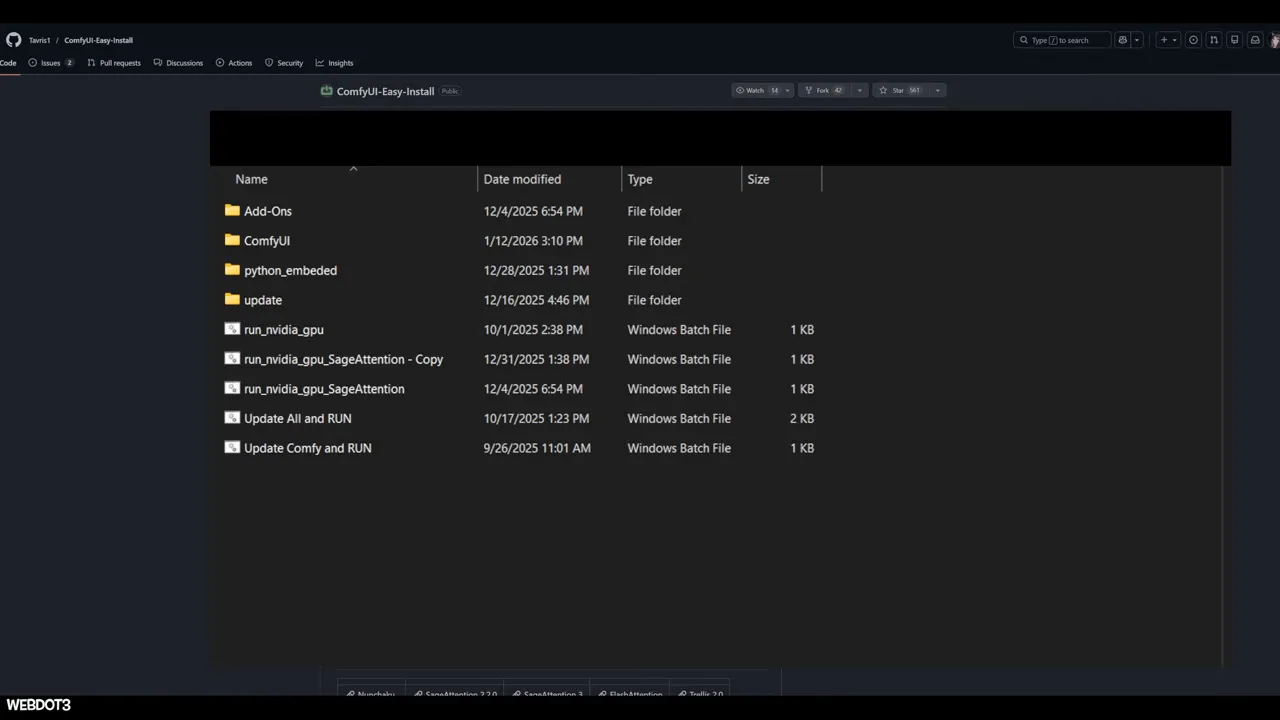
- Run NVIDIA GPU + Sage Attention — what you'll use day to day.
- Run NVIDIA GPU — without Sage Attention, for workflows that don't need it.
- Update ComfyUI and run — updates the app itself. Do this at least weekly or when a new release drops, so you get new model support and built-in workflows.
- Update all and run — updates ComfyUI and every custom node and package. Powerful, but this is the one most likely to break an install, since nodes depend on specific package versions.
03Run the boring default workflow first
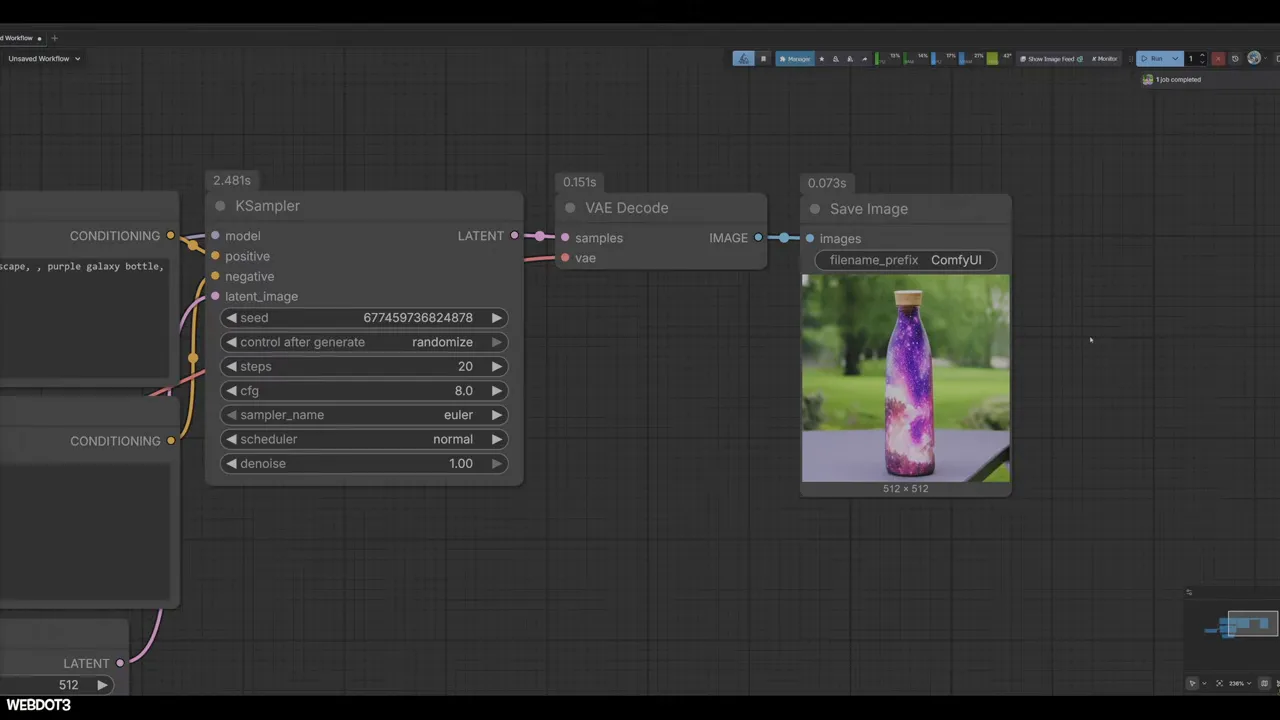
When ComfyUI opens, it loads a basic default workflow. It won't make influencers, and it looks worse than ChatGPT's image generator. Run it anyway.
Starting simple proves your install works: ComfyUI runs, your GPU is detected, and you know where models go. If you start with a complex custom workflow and it fails, you can't tell whether the workflow is broken or your setup is.
Where models come from and where they go
Models come from Hugging Face. Search the model name (or ask an LLM) and it'll almost always be the first result. Download the file and put it in the matching folder under ComfyUI/models/ — checkpoints go in checkpoints, LoRAs in loras, text encoders in text_encoders, and so on.
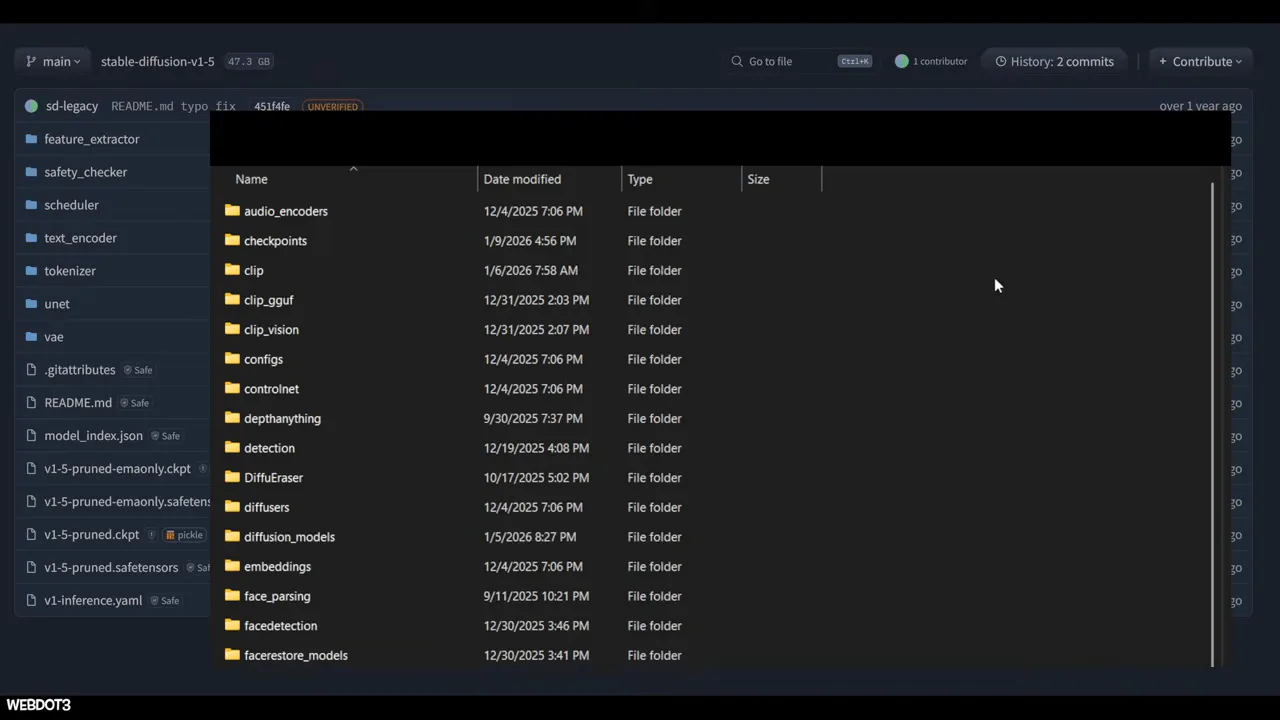
Then refresh the browser. ComfyUI won't see new models until you do. Pick the model in the Load Checkpoint node and run.
04Custom nodes and the red-box problem
Every box in a workflow is a node. The default ones are built in. Custom workflows — like the ones you'll grab from CivitAI — use extra nodes you don't have yet, so they load with red boxes and "missing node" errors. This is where most beginners get stuck.
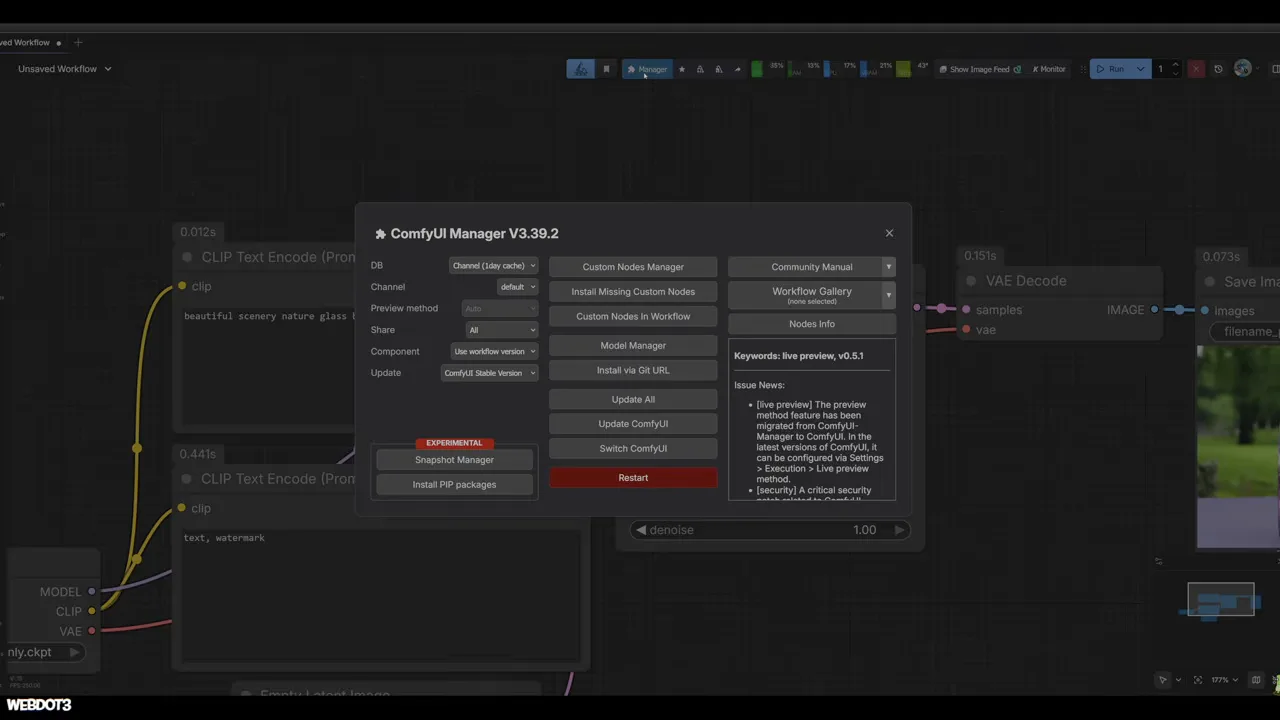
The fix is ComfyUI Manager (the Manager button in the top bar). Click Install Missing Custom Nodes, and it detects what's broken and offers the downloads right inside ComfyUI. It solves roughly 85% of problems. For the rest, install the node from its GitHub URL (Manager has an option for that) or follow the repo's instructions.
It gets easier fast: most workflows reuse the same popular nodes, so after a few installs, new workflows mostly just work.
05FP16 vs FP8 vs FP4 (and GGUF)
Models come in different precisions. You don't need the theory — just the tradeoff:
| PRECISION | QUALITY | SPEED / VRAM |
|---|---|---|
| FP16 | Highest, very stable | Slowest, most VRAM |
| FP8 | Usually looks the same as FP16 | Faster, less VRAM — the sweet spot on a 5090 |
| FP4 | Noticeably lower | Very fast; consider it on smaller cards |
Keep your files matched: if your diffusion model is FP8, use an FP8 text encoder too.
GGUF models are quantized single-file versions of popular checkpoints, built to run with less memory. They usually appear days or weeks after a big release. If your hardware is modest, watch for them — the LTX 2.3 low-VRAM workflow is a good example.
06What a LoRA is
A LoRA adds supplemental knowledge on top of a base model. If a model doesn't know a particular face or style well, you train a small LoRA file on examples, and the model can suddenly produce it accurately. You load LoRAs with a Load LoRA node and can stack several — a character LoRA plus a style LoRA like an 80s film look, for instance (expect them to compete a little when combined).
For influencers, this is the big one: training your own LoRA is the most reliable way to get a consistent face.
07Train a LoRA, in brief
A face LoRA needs about 20–25 clean images of your character, each with a text file describing it. Writing those captions by hand is a headache, so the dataset helper in the smallzero.io member tools does it: add a Gemini key (or a Grok key), choose the goal (identity, to lock the face) and target model, set a trigger word, load the photos, and download a zip of images plus captions.
Then train in Ostris AI Toolkit, an open-source, community-built trainer that downloads the base model for you:
- Select the dataset first, before tweaking anything — it's easy to forget.
- Trigger word: must match the one in your captions.
- Rank: 32 for a vibe or style, 64 for a face.
- Resolution: 512 is plenty and trains faster (some prefer 1024).
- Steps: 3,000 is a common target, but LoRAs are often good by ~2,000. AI Toolkit saves checkpoints along the way, so you can use an earlier one if it looks better.
- Samples: replace the default prompts with ones relevant to your character. Previews appear every ~250 steps.
A Flux LoRA takes a couple of hours on a 5090. Training needs 16GB+ of VRAM; if you don't have it, AI Toolkit also runs on RunPod. Full settings walkthrough: how to train an AI influencer LoRA.
08Build a character from scratch
Get a prompt from an inspiration photo
Find an image with a look you like (ideally one that's also AI-generated) and run it through Prompt Alchemy. It reads the vibe and writes a prompt for your chosen model — so you get someone with a similar feel, not a copy of a real person's likeness.
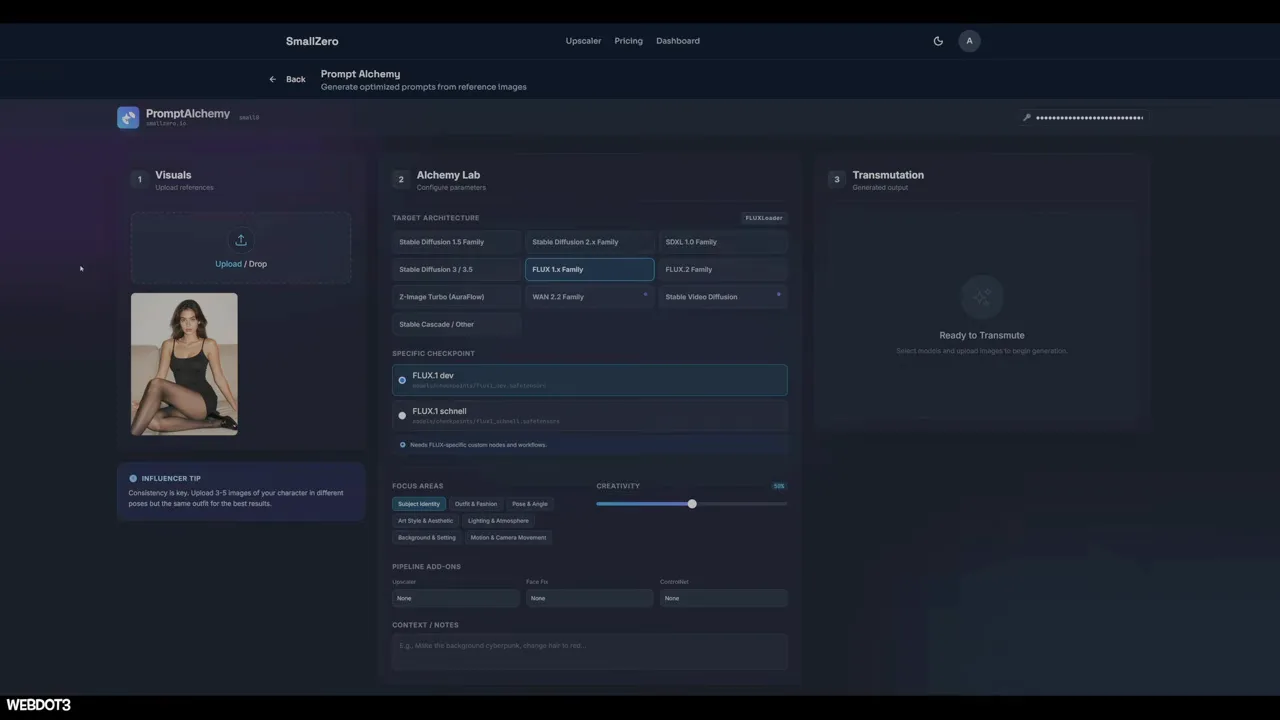
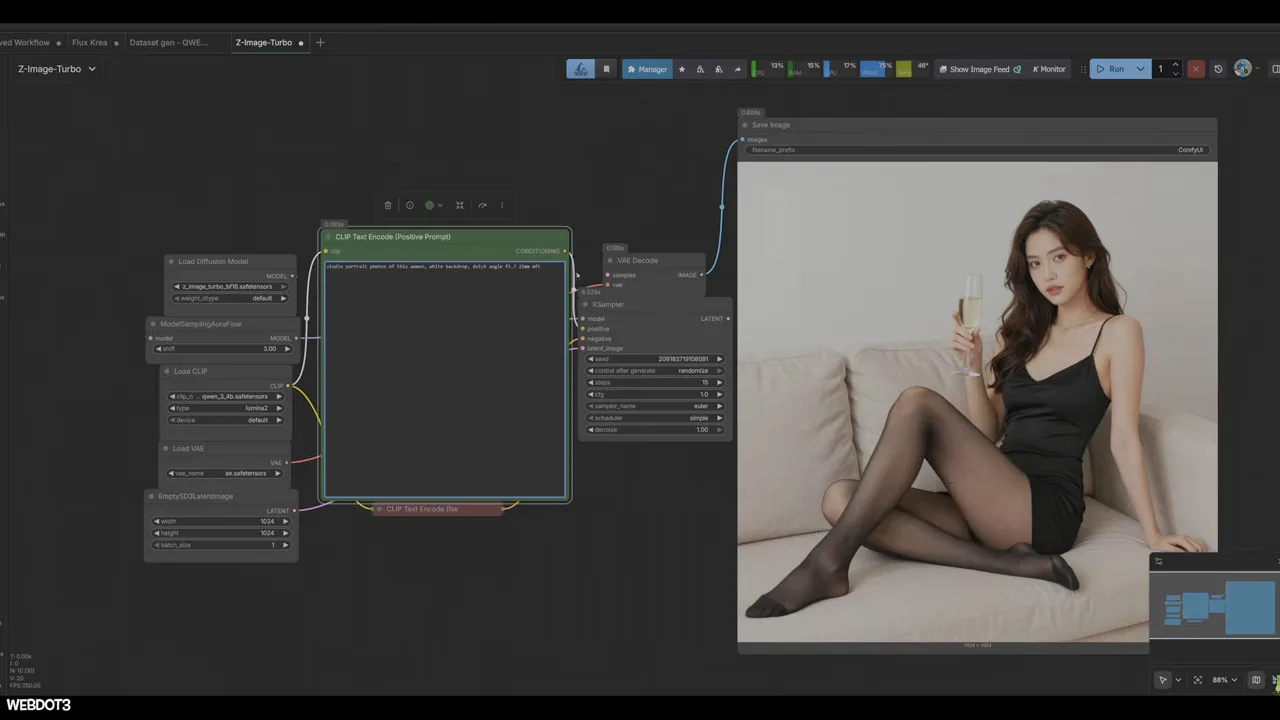
Generate a clean base portrait
Take the prompt to Z-Image Turbo — fast, with excellent results. For a dataset, you want a clean face: add something like "studio portrait, white backdrop." Specify details (like ethnicity) if you want them consistent.
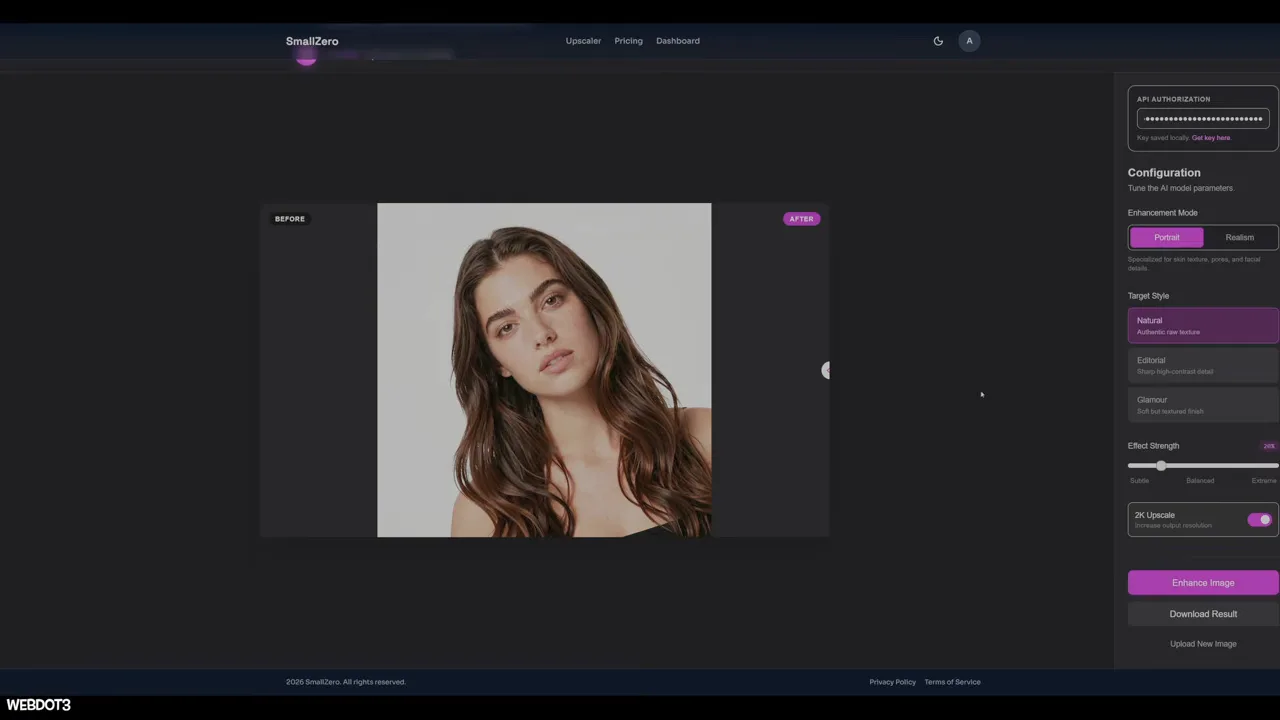
Upscale for realism first
Your base image is the foundation of the whole dataset, so make it as good as possible before going further. The smallzero.io upscaler (with your Gemini key) adds skin imperfections, color variation and more natural hair texture. A subtle 2K upscale works well, and the before/after slider lets you compare.
Generate the angles
Feed the upscaled face into a Qwen Image Edit multi-angle workflow (this one is a community member's, with an 8-step Lightning LoRA to speed it up). In about a minute and a half, you have the same face from many angles — a LoRA dataset almost out of the box.
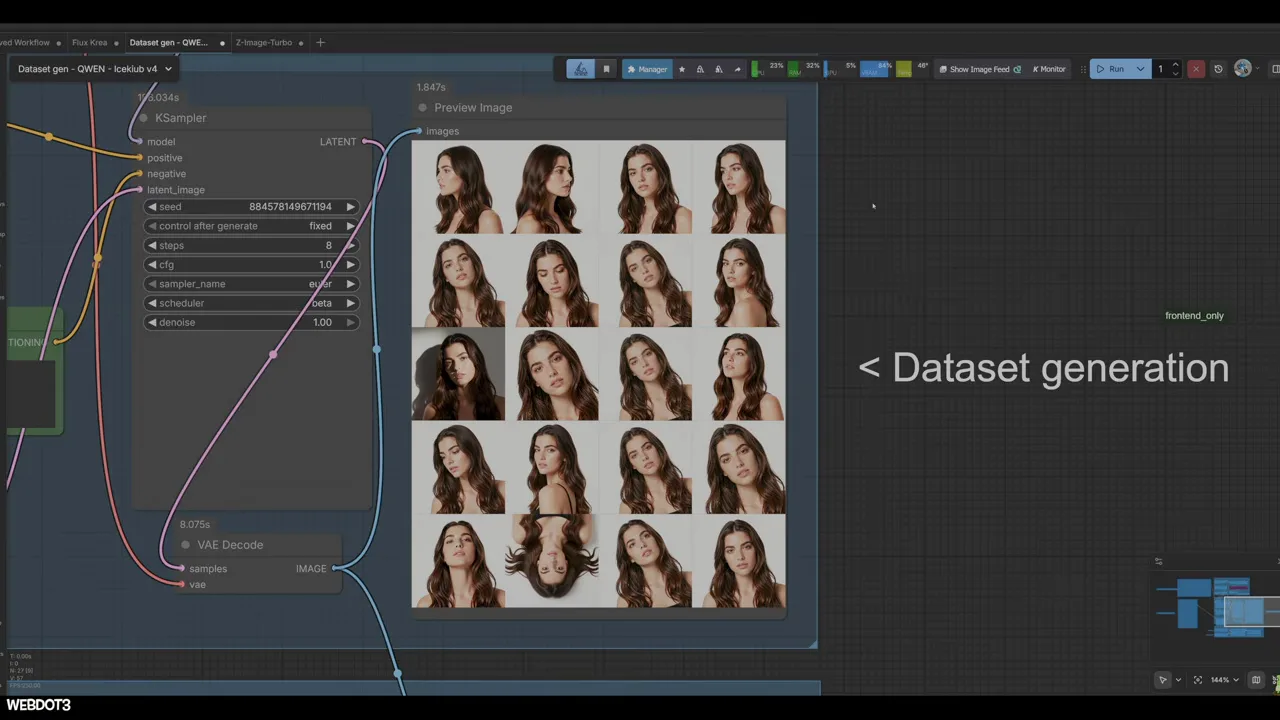
Caption those images, train as in step 07, and you have a consistent character that's entirely yours. This workflow focuses on the face, so add some body shots too — or train the face first and the body after. More on this in 360° character turnarounds with Qwen Edit.
09Start with built-in templates (and buy storage)
ComfyUI ships with templates for almost every popular model: open the top-left menu and choose Browse Templates. They're updated within days of major releases (keep ComfyUI updated to see them) and use the most common nodes and best practices. Work through these before chasing custom workflows.
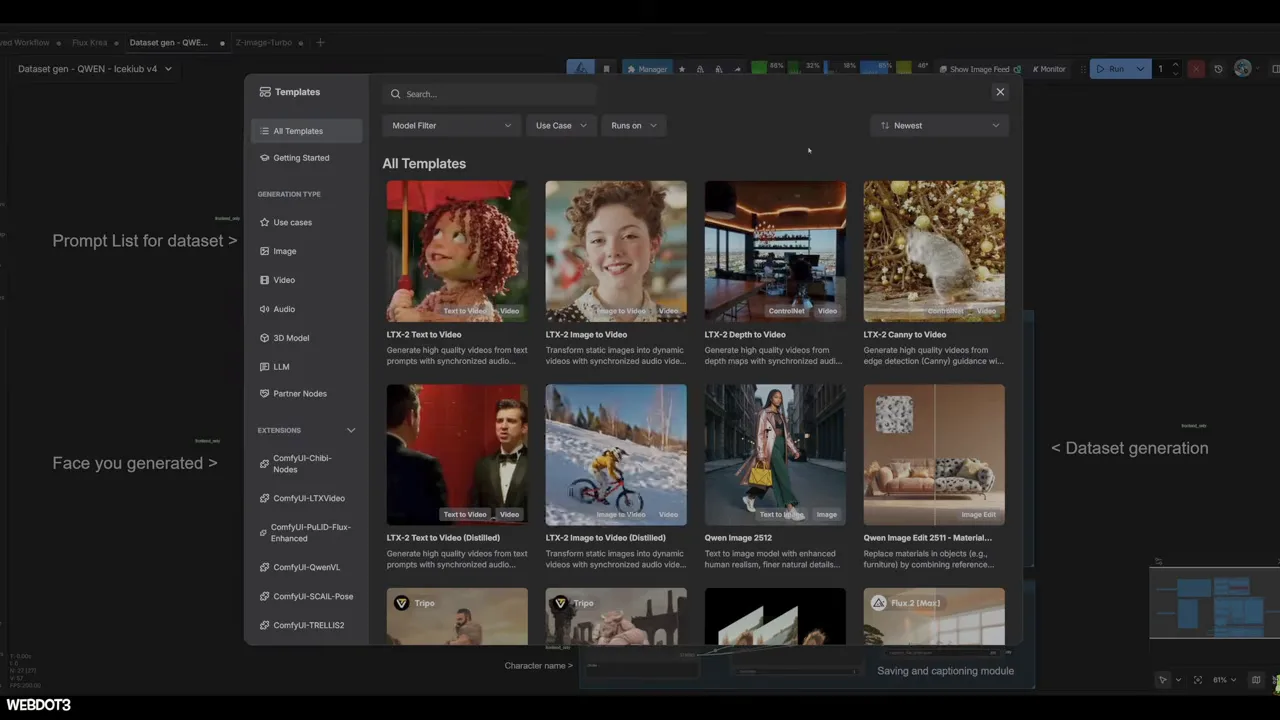
And plan your storage. Checkpoints, encoders and outputs add up fast — two 2TB NVMe drives can sit nearly full. You can always delete and re-download models, but most people end up hoarding them.
Where to go next
- Consistent AI influencer faces with Z-Image
- Consistent faces in Flux 2 with PuLID
- AI video on an 8GB GPU with LTX 2.3
Your first LoRA probably won't be great. Train it anyway — and when you get stuck, bring the question to the community.
$ ls ../related
$want the datasets, workflows and LoRAs behind posts like this?
they're shared inside the skool community. come join us.