The exact LoRA workflow behind a hyper-real AI influencer.
Training your own LoRA looks overwhelming the first time. It isn't. With three tools and a handful of settings, here's the complete process from a folder of images to a hyper-real influencer in ComfyUI.
A quick refresher: a LoRA is a small add-on file that teaches a base model something specific it doesn't already know. Train one on photos of a particular car and the model can suddenly draw that car accurately. Train one on a character, and you get that character's face on demand — which is exactly what an AI influencer needs.
The three tools
| TOOL | JOB |
|---|---|
| LoRA dataset prep tool | Renames images and writes a caption file for each one using Google Gemini. |
| Ostris AI Toolkit | Trains the LoRA. The easiest, most straightforward trainer of the ones tested. |
| ComfyUI | Generates the final images with a Wan 2.2 text-to-image workflow. |
01Prep and caption the dataset
Every training image needs two things: a consistent filename (name_1.jpg, name_2.jpg…) and a matching text file describing it (name_1.txt…). You can do this by hand, but it's tedious.
The dataset prep tool automates it. Add your Google Gemini key to the .env file in the tool's folder, pick your training goal and target model, and it scans every photo, names it, and writes a caption tuned for that goal. Because the captioning runs on Gemini, it needs no GPU — a MacBook Air can do it.
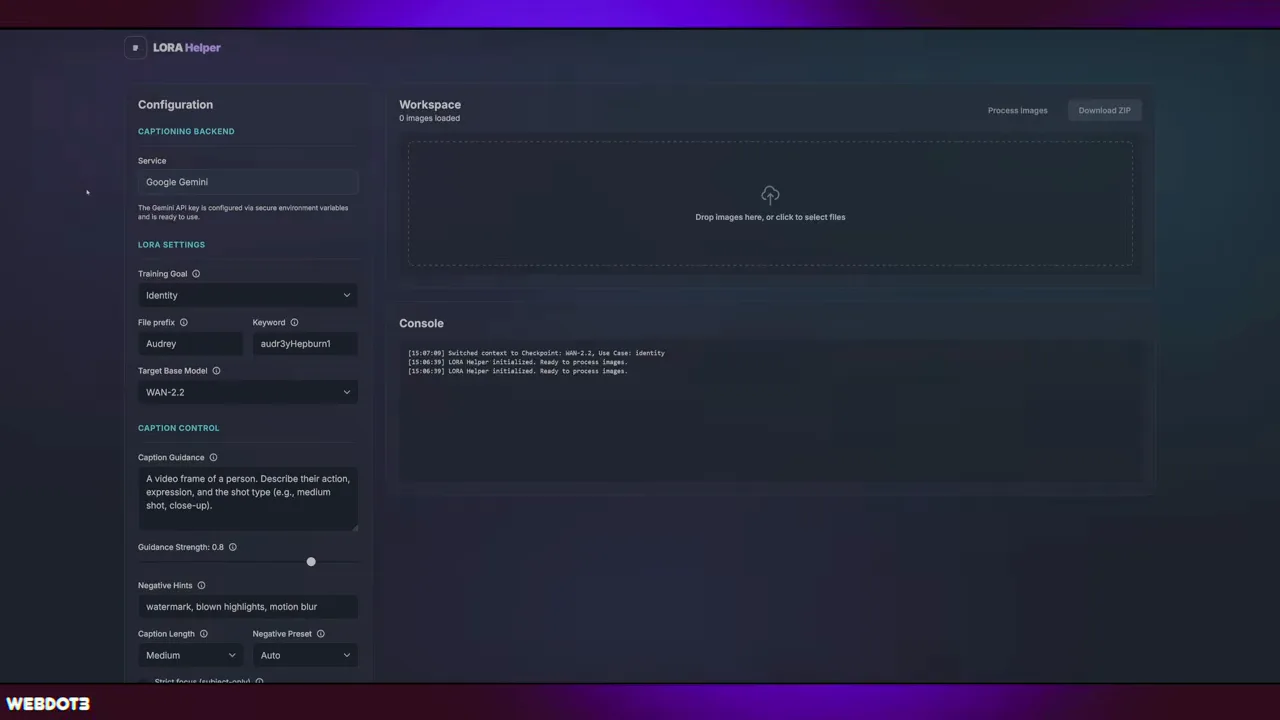
When it finishes, download the zip. Inside: every image paired with its caption file, ready to train.
02Set up the job in AI Toolkit
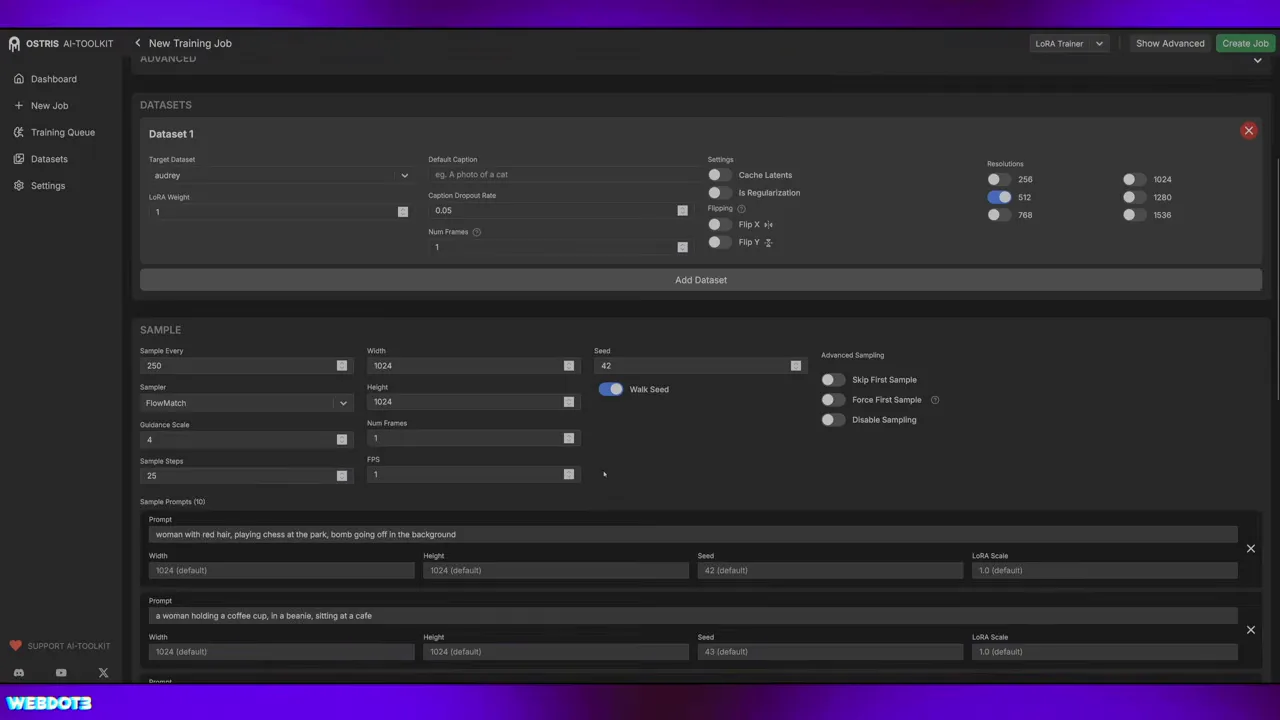
In AI Toolkit, go to Datasets → New, name it, and drag in your images and caption files. Then create a new training job.
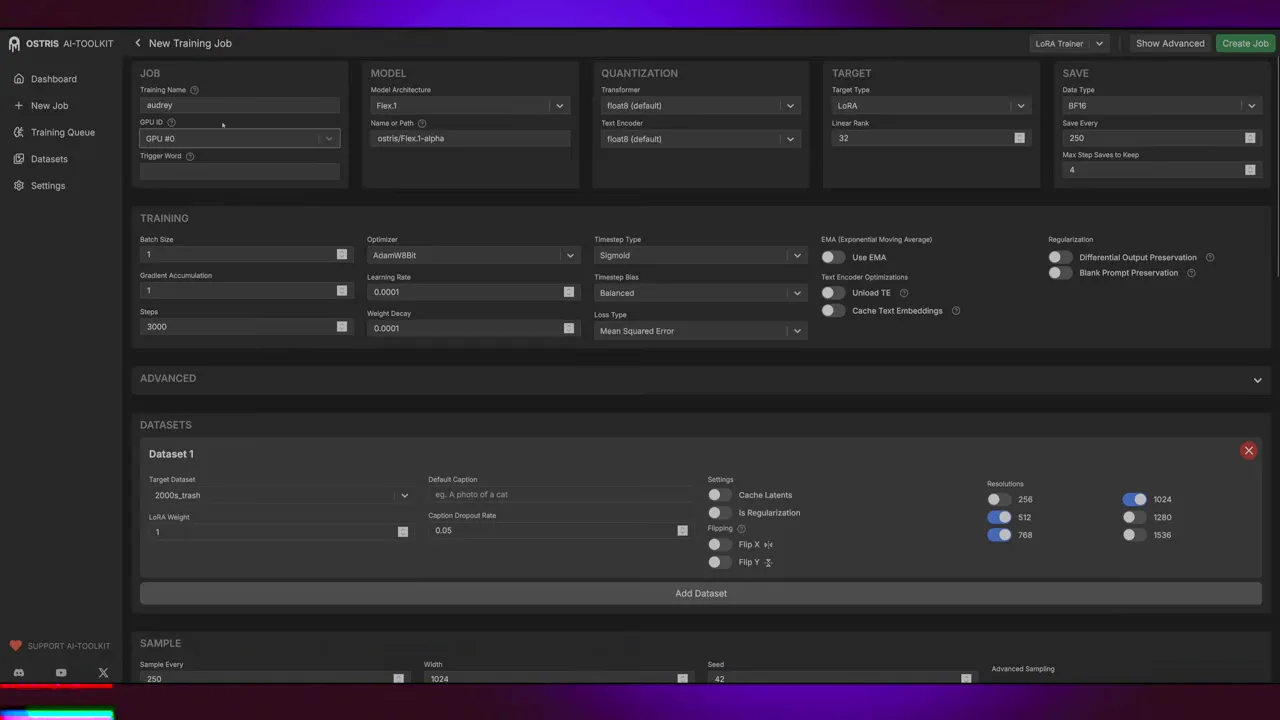
| SETTING | VALUE | NOTES |
|---|---|---|
| Training name | your choice | Becomes the LoRA filename. You can rename it later. |
| Trigger word | unique token | Must match the captions. |
| Model | Wan 2.1 / 2.2 | Trained on Wan 2.1 with data aimed at Wan 2.2 settings. |
| Low VRAM | on if <32GB | Not needed on a 5090; turn it on for smaller cards. Unloading text encoders saves more. |
| Linear rank | 64 | Higher = more focus on the subject, less variety. For a face, go high; for a vibe or filter, go lower. |
| Resolution | 512 | Some prefer 1024. 512 gives good results and trains faster. |
| Steps | 2,000–3,000 | 3,000 can be overkill; many find 2,000 enough. |
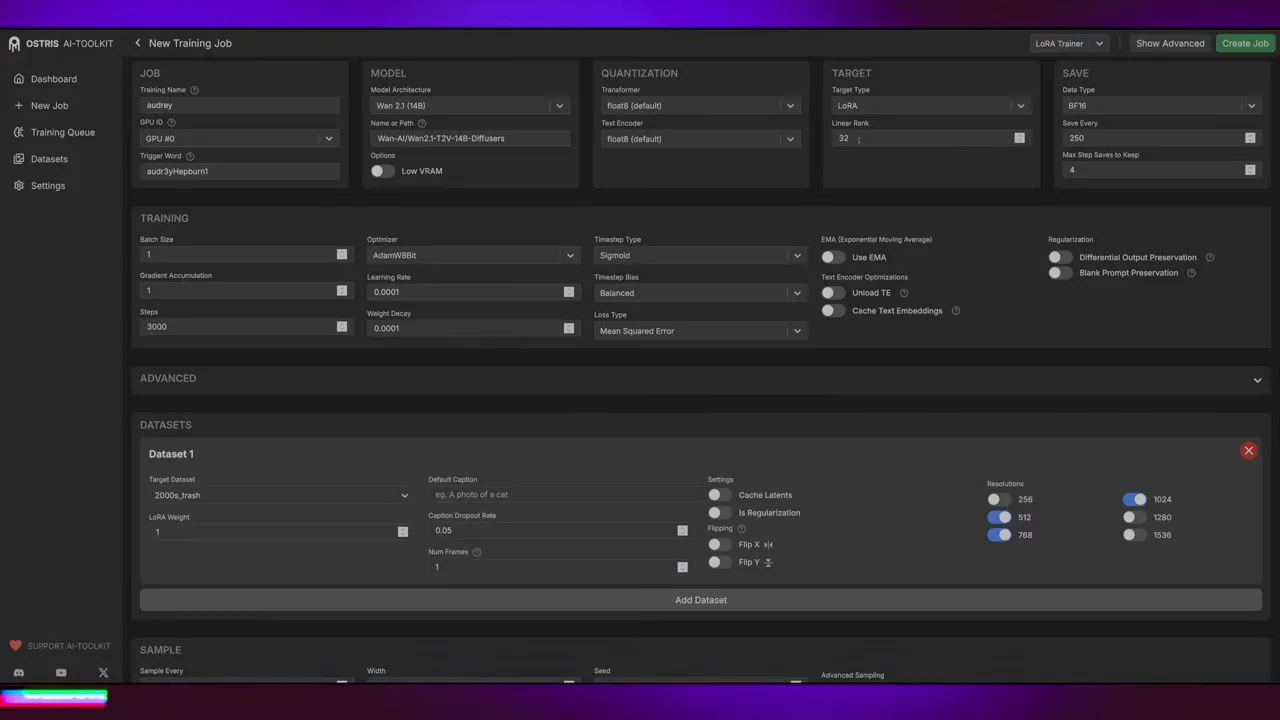
VRAM-wise, plan on at least 16GB for this kind of training, and 24GB is safer. On a slower card, start the job before bed and check it in the morning.
03Make the samples useful
Two tweaks in the sample section save a lot of time:
- Set samples to 1 frame at 1 fps. Wan is a video model, so by default every preview is a video and sampling takes forever. One frame gives you an image instead.
- Copy a caption straight from your dataset as a sample prompt. It's the most targeted prompt possible, so it shows you the best-case result as training progresses. Use three or four.
04Generate in ComfyUI
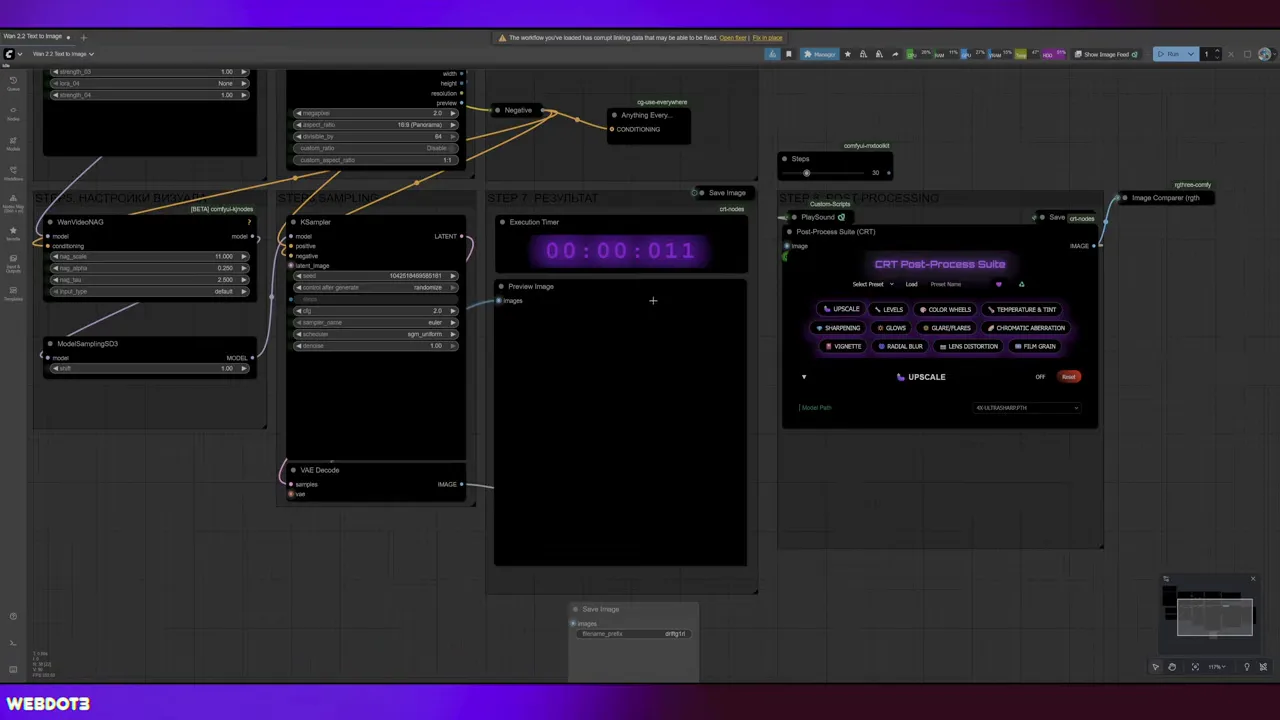
Load the finished LoRA into the Wan 2.2 text-to-image workflow and render. Here's a "drift girl" LoRA trained with exactly this process — posing with cars at a night meet:
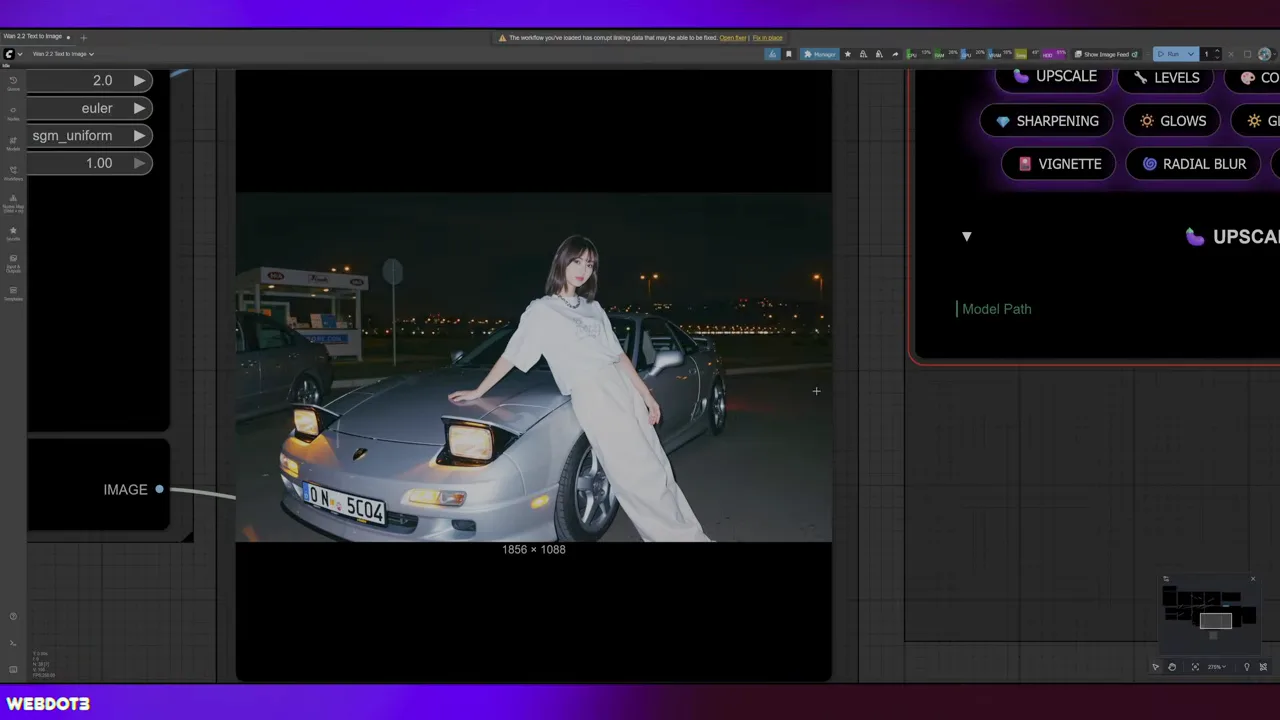
The first run took 1:42 with settings cranked up for later video conversion; typical runs are 50–70 seconds depending on resolution and steps.
That's the whole process
- Generate a dataset of your character and auto-caption it.
- Load it into AI Toolkit with a unique trigger word.
- Rank 64, 512px, 2,000–3,000 steps, single-frame samples.
- Generate in ComfyUI.
Rather skip training? Ready-made influencer LoRAs, plus the dataset tool and workflows, are available to members at smallzero.io. Training updates fast, so check the newer posts too — like the Z-Image version of this workflow.
$ ls ../related
$want the datasets, workflows and LoRAs behind posts like this?
they're shared inside the skool community. come join us.