Run LTX 2.3 image-to-video on an 8GB GPU.
You don't need a 5090 to make AI video with LTX 2.3. A quantized GGUF model and a few deliberate corner cuts get image-to-video running on 8–12GB cards like the 3060, 4060 and 5060.
With Sora gone, a lot of people lost the easiest way to make AI video without serious hardware or a pricey subscription. LTX 2.3 is a strong open replacement, but the full model is built for big GPUs. This workflow trims it down so it runs on the cards most people actually own.
→ 8GB minimum, 12GB recommended (RTX 3060 / 4060 / 4070 / 5060 / 5070)
→ if you're on a 5090 or similar, skip this and run the full distilled model instead
Be clear-eyed about the tradeoff up front: to fit in less VRAM, this workflow cuts corners that cost some quality. You won't match the full model. You will get usable video on hardware that otherwise couldn't run it at all.
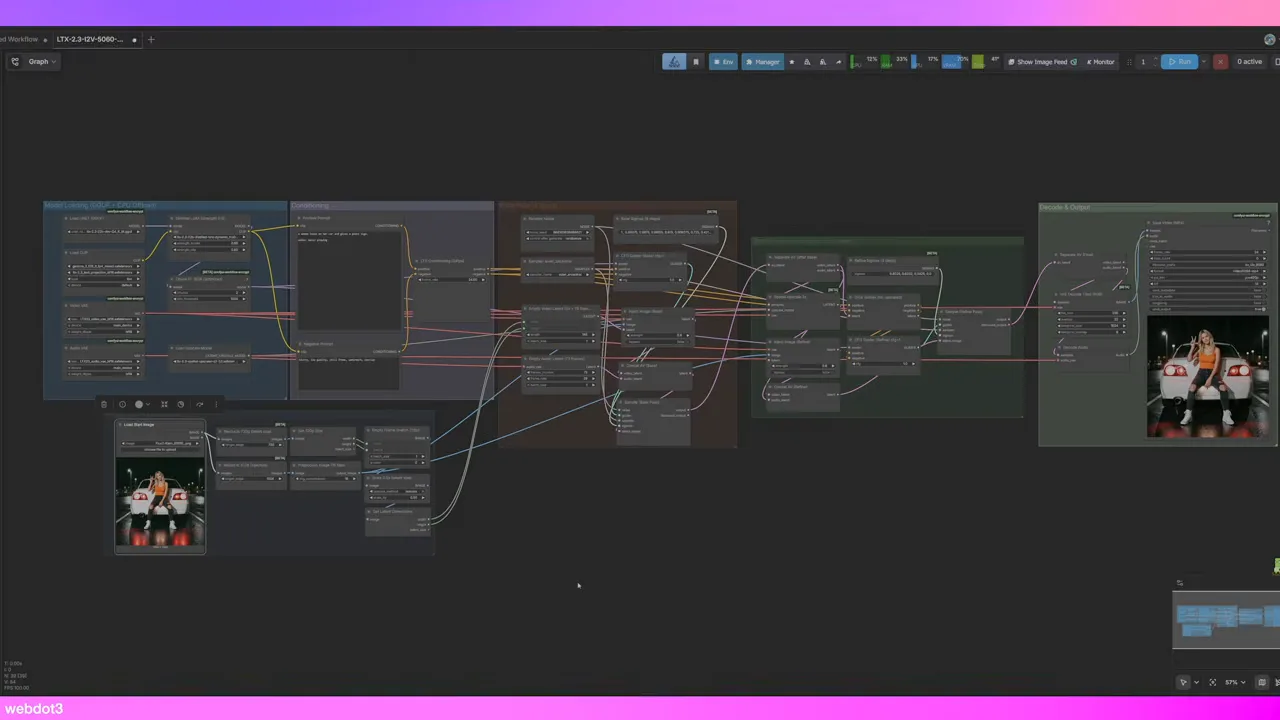
01Download the models
The key to the VRAM savings is a GGUF model — a quantized (compressed) version of the full checkpoint that needs far less memory, at some cost to quality. You'll need:
| FILE | ROLE |
|---|---|
| LTX 2.3 22B Q4_K_M GGUF | The quantized video model. One of the lightest LTX 2.3 checkpoints. |
| LTX 2.3 text projection (BF16) | Text conditioning for the prompt. |
| LTX 2.3 video VAE | Decodes the video frames. |
| LTX 2.3 audio VAE | Only needed if you generate audio. |
All of these are on Hugging Face.
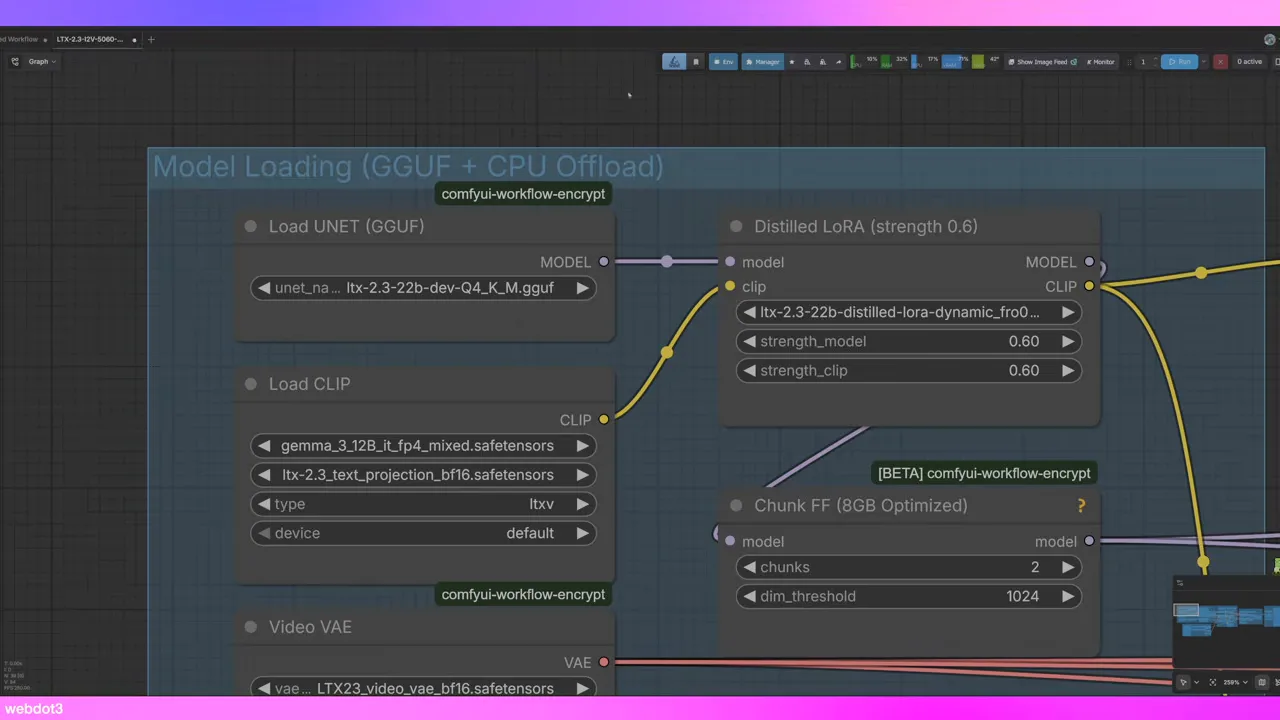
02Pick a strong reference image
This is image-to-video, so the input frame sets the ceiling. A weak, plastic-looking test image gives a weak video — swap it for a realistic render before judging the workflow. The example here uses an influencer render made in Nano Banana Pro.
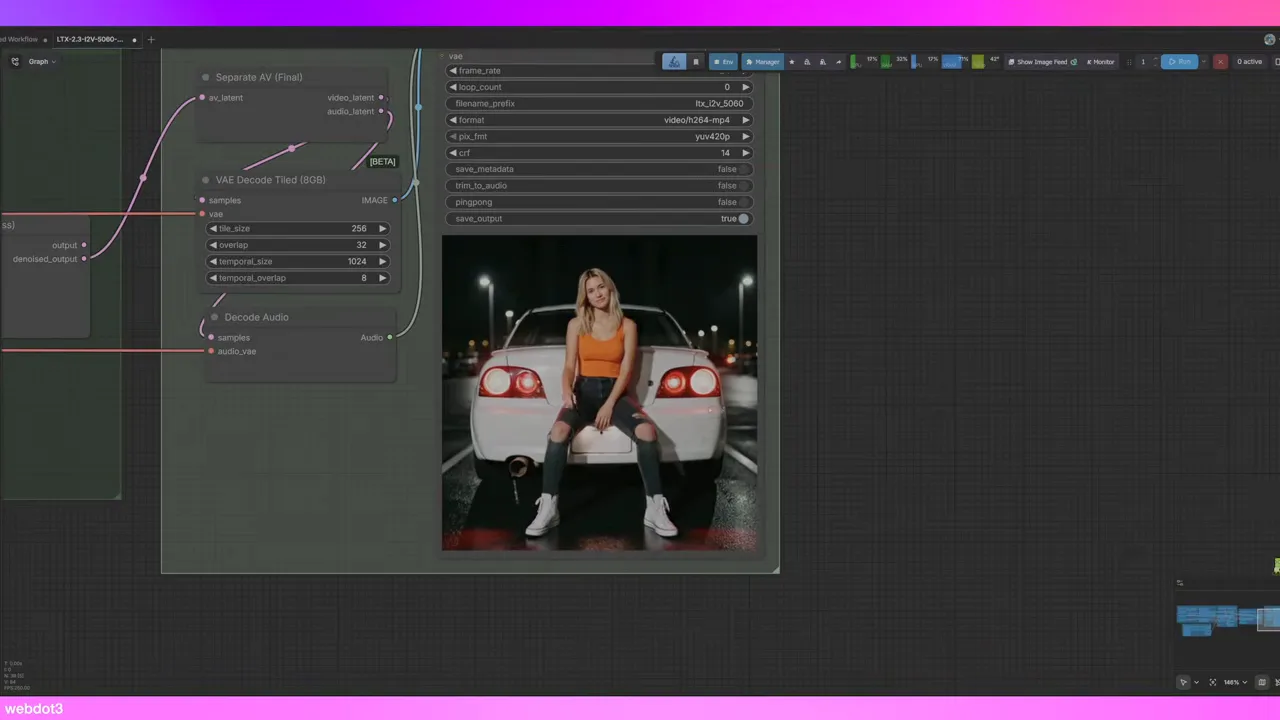
03Set resolution, length and audio
- Resolution: 720p. The workflow ships at 720p to keep memory in check on older cards.
- Length: ~145 frames, roughly 4–5 seconds of video.
- Audio: optional. Generating audio is a toggle. Turn it off if you're running out of memory — it buys you more headroom.
Write a prompt describing what happens in the clip. For talking UGC-style content, include a short line of dialogue for the character to say.
04Generate
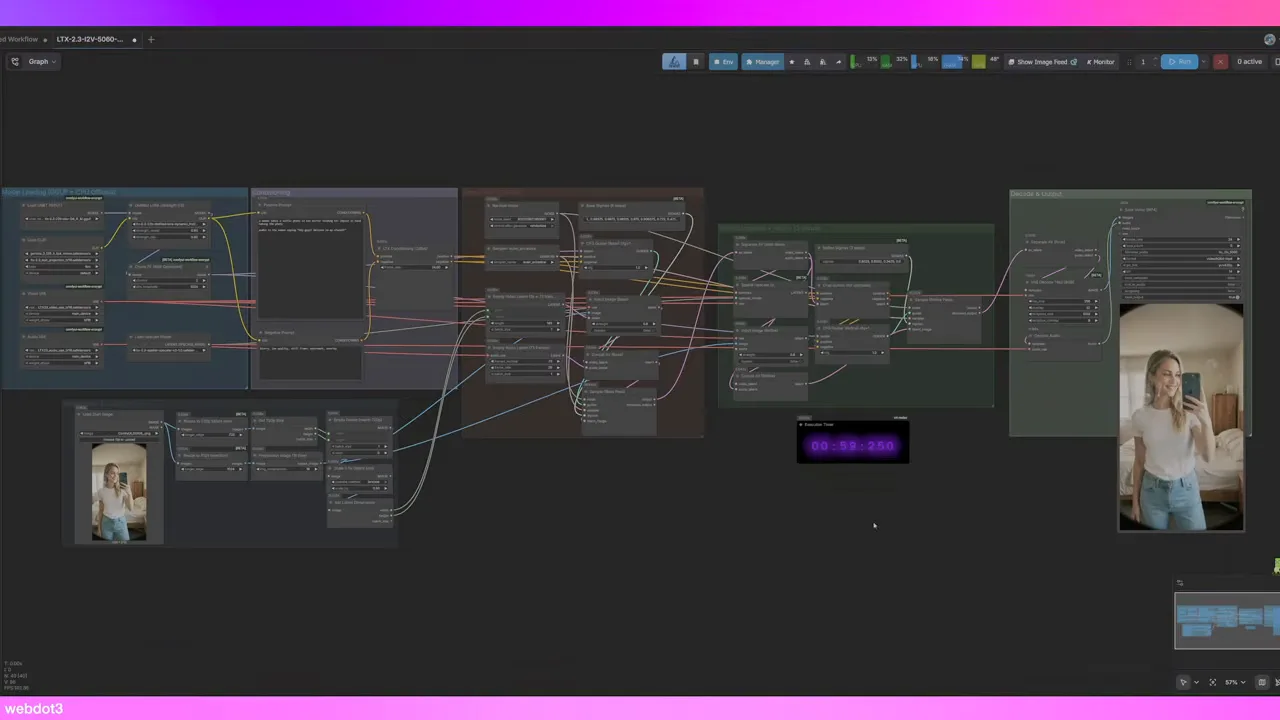
For reference, a 720p clip took 59 seconds on an RTX 5090 — about twice as fast as the full model on the same card. Expect it to be much slower on a 3060 or 4060, but it will run.
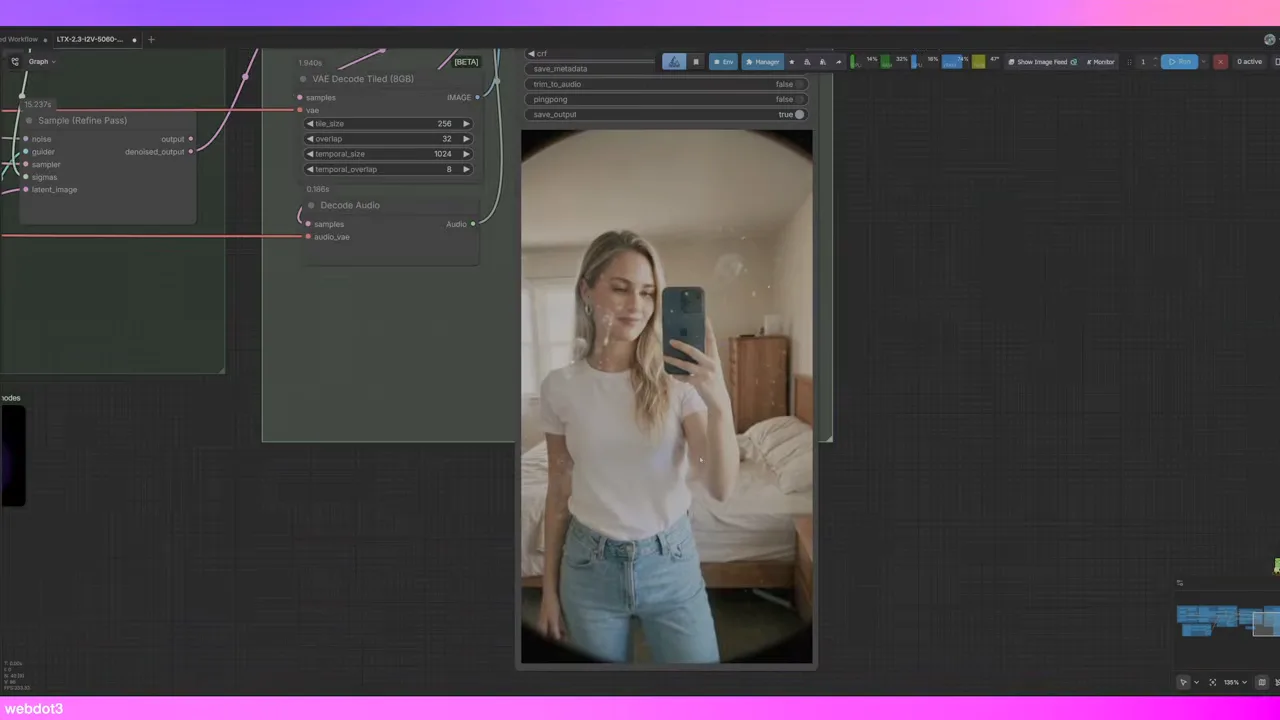
Honest results
- Movement is good — better than most low-VRAM video workflows.
- Faces can distort when they pass behind reflections or smudges in the scene.
- Audio is the weak point. This setup is better for video than speech; for talking clips, plan to tweak the audio or add it separately.
If you tune it for your card, share your GPU and settings — low-VRAM workflows improve fastest when people compare notes. The workflow is hosted for members at smallzero.io.
$ ls ../related
$want the datasets, workflows and LoRAs behind posts like this?
they're shared inside the skool community. come join us.