Consistent AI influencer faces with Z-Image: the LoRA workflow.
There's no magic secret to a face that stays the same across every shot. It comes down to clean training data and a few settings that matter. Here's the full pipeline, start to finish.
This is a high-level walkthrough for people who already have a LoRA training setup. If you've never installed AI Toolkit or configured your machine for training, start with a setup guide first — this post assumes you know your way around and just want the recipe for consistent faces in Z-Image.
→ ComfyUI with Z-Image loaded
→ Ostris AI Toolkit (it has native Z-Image support)
→ an NVIDIA GPU — low-VRAM mode makes this practical on smaller cards
→ 20–40 images of one fictional character
01Build a dataset of someone who doesn't exist
Every image of the example character, "Jenny Jones," was generated in Midjourney. Using a fictional person sidesteps the likeness and consent problems that come with training on real people, and it means you can use the result commercially without worrying about who's in it.
You don't need a fresh dataset for every model, either. This one was originally built for Wan 2.2 and reused here unchanged. A good, varied set of one character — different outfits, lighting and angles, but the same face — is the asset that keeps paying off.
02Caption every image
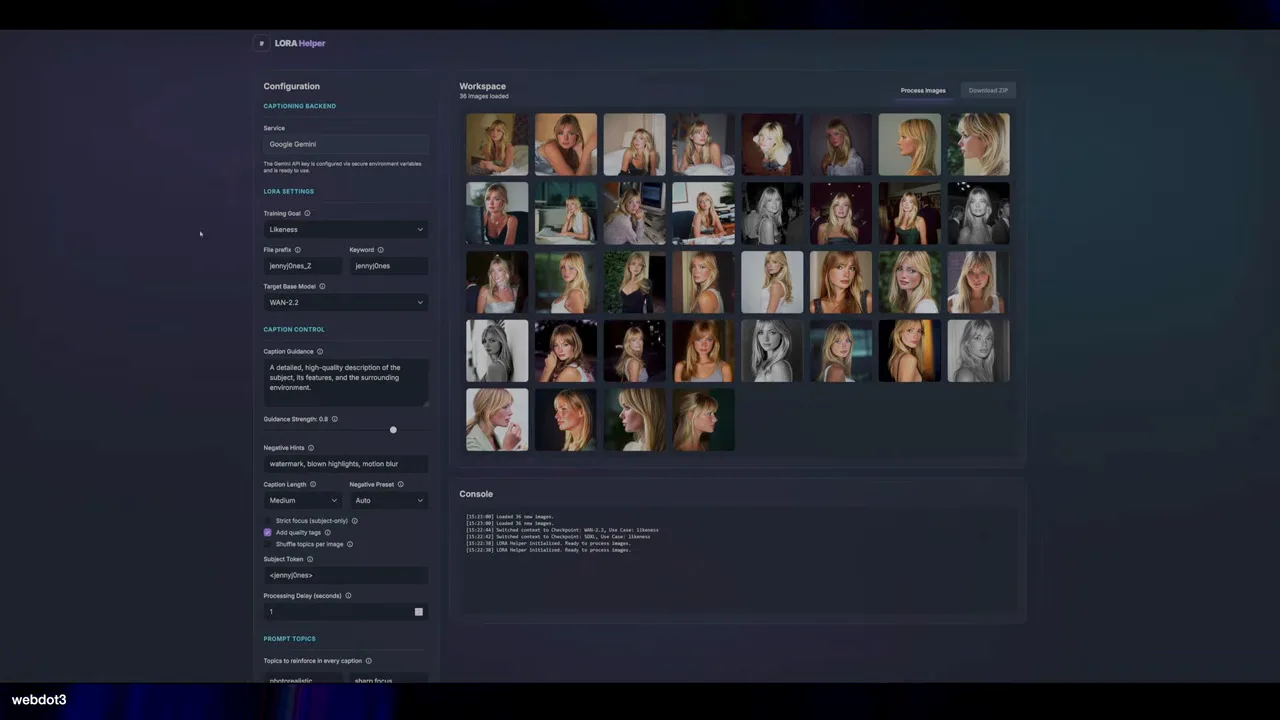
Every training image needs a matching .txt file describing it. You can write these by hand, but for a full dataset that's hours of work. Instead, run the folder through a LoRA dataset prep tool: it sends each image to Google Gemini, writes a caption tuned to the model you're training, and hands you back a zip of image + text pairs in about 5–10 minutes.
At the time of recording there wasn't a dedicated Z-Image captioning preset, so the Wan 2.2 preset was used — and it worked fine. Flux-style captions are reported to work too.
The dataset helper is one of the in-house tools in the smallzero.io toolkit, alongside the Prompt Alchemy and upscaler tools covered below.
03Train the LoRA in AI Toolkit
Drop the captioned dataset into Ostris AI Toolkit and set up a new job. The settings that matter:
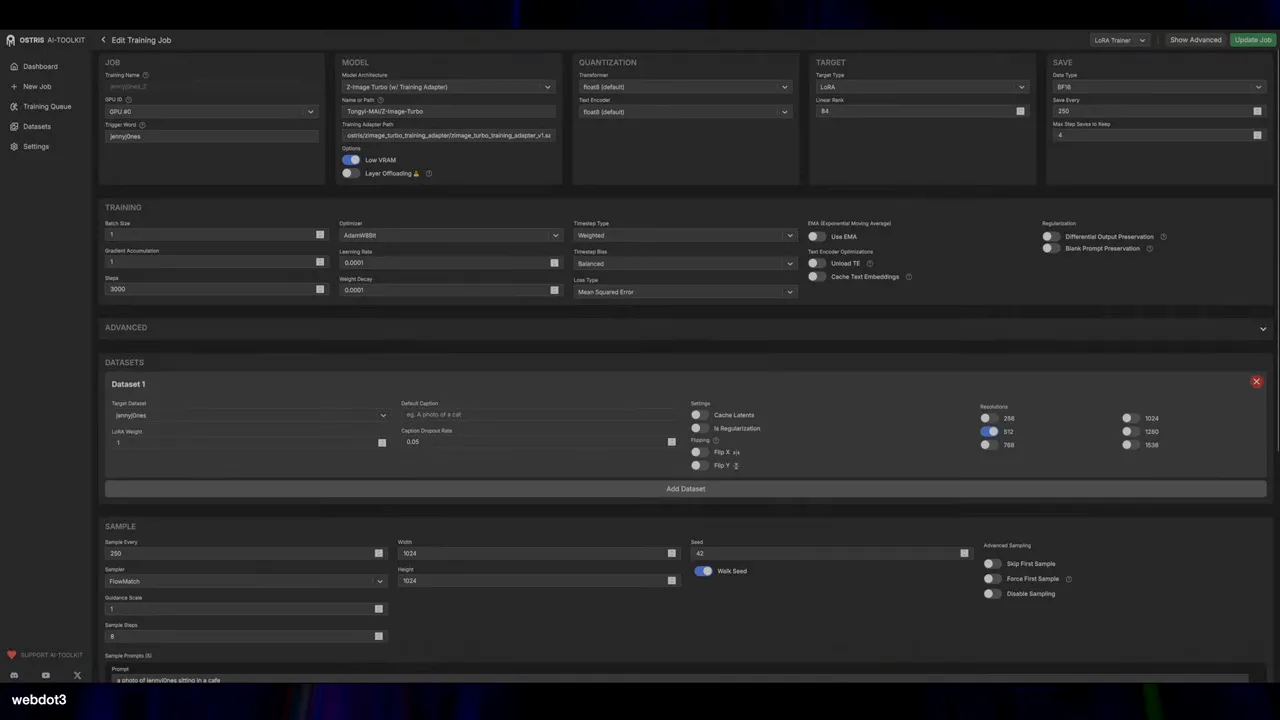
| SETTING | VALUE | WHY |
|---|---|---|
| Model | Z-Image | Native support was added to AI Toolkit. |
| Low VRAM | On | Used even on a 5090. Turn it on. |
| Trigger word | Matches captions | Must be the same keyword your captions use. |
| Linear rank | 84 | 64 is the common default; going higher noticeably improved face consistency. |
| Resolution | 512 | Fast to train and enough to lock the identity. |
| Sample prompts | A few scenes | Lets you watch the face settle in as it trains. |
The rank bump is the one change worth calling out. With 84 instead of 64, the face held together noticeably better across different scenes.
04Generate in ComfyUI
Load the finished LoRA into your Z-Image workflow and render. Z-Image is quick, so you can iterate fast. Here's Jenny in a Pilates studio holding a green drink — the same face across separate generations.
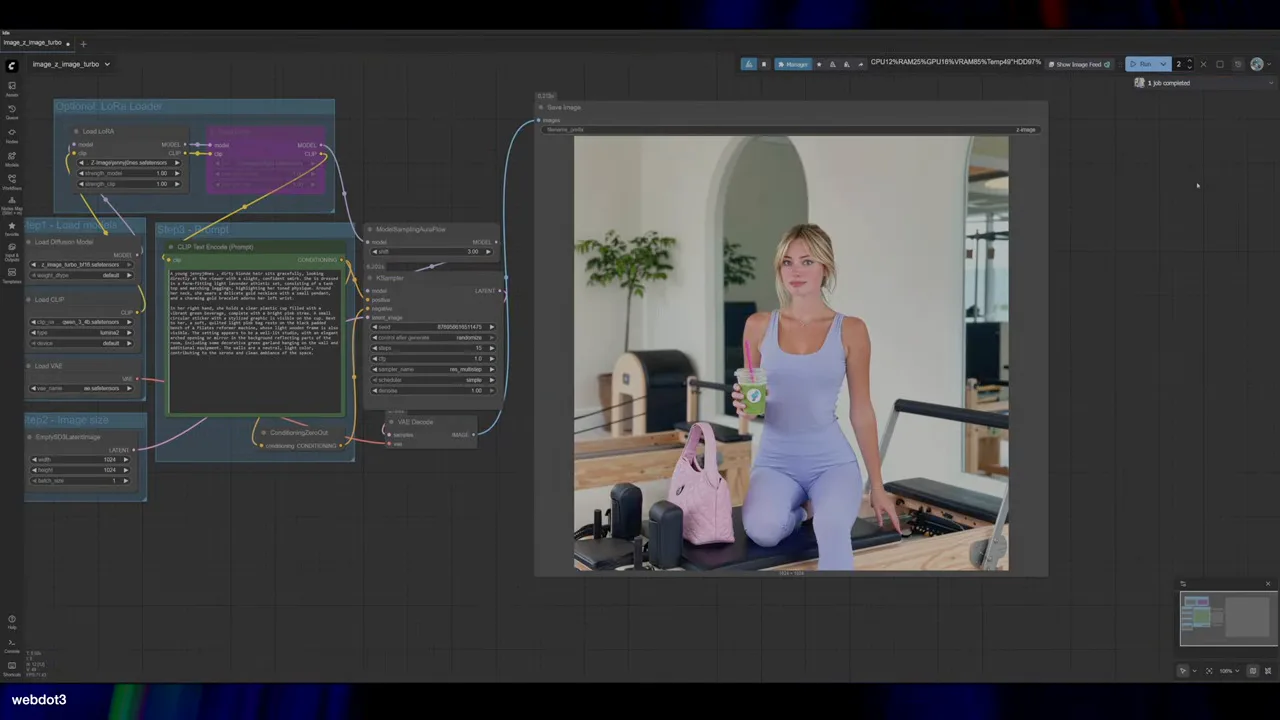
Be honest with yourself about the results: it's consistent most of the time, not 100%. Generate a few, keep the best, and keep refining.
05Steal poses without ControlNet
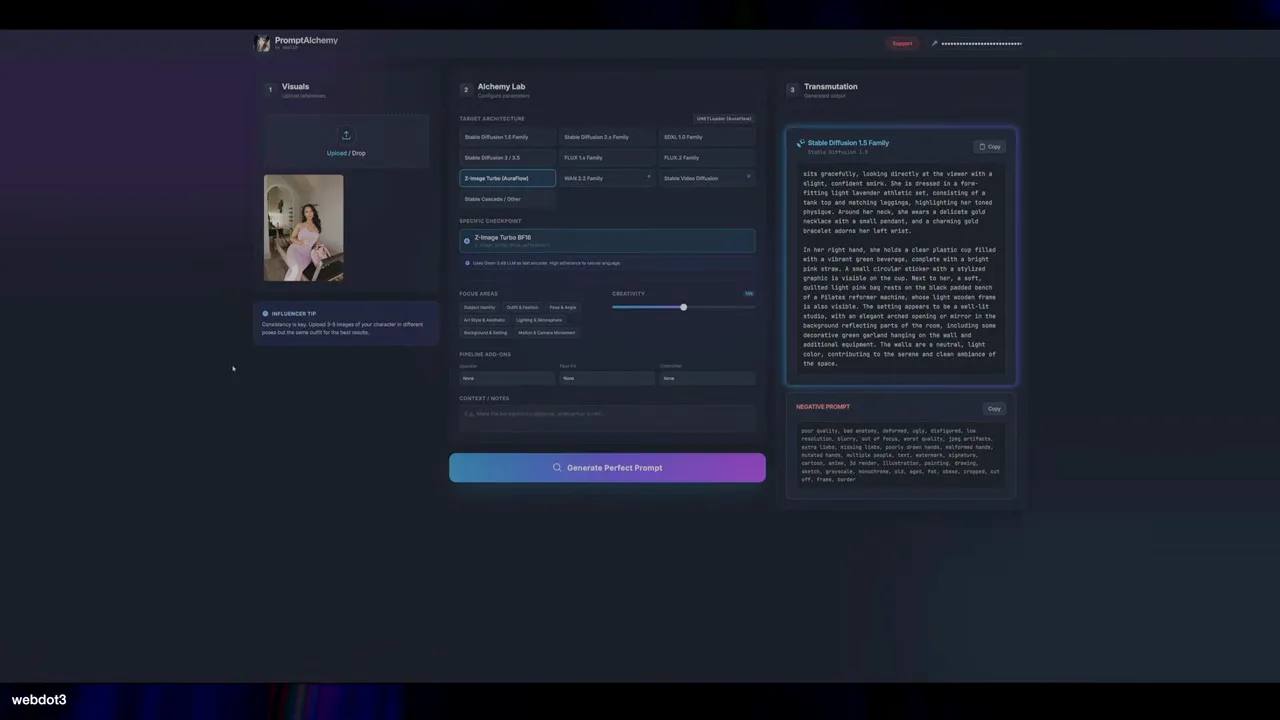
For prompts, a lazy trick: upload any reference photo to Prompt Alchemy and it reads the pose and mood, then writes a prompt for your model. It's a way to borrow a shot's vibe without setting up ControlNet or training a pose LoRA.
06Add skin realism and upscale
Raw generations often come out a little too smooth. The last pass runs the image through the smallzero.io upscaler and skin-realism tool — built as a cheaper alternative to paid enhancers. It uses your own Gemini API key, and requests are sent from your browser rather than a server, so your images stay private.
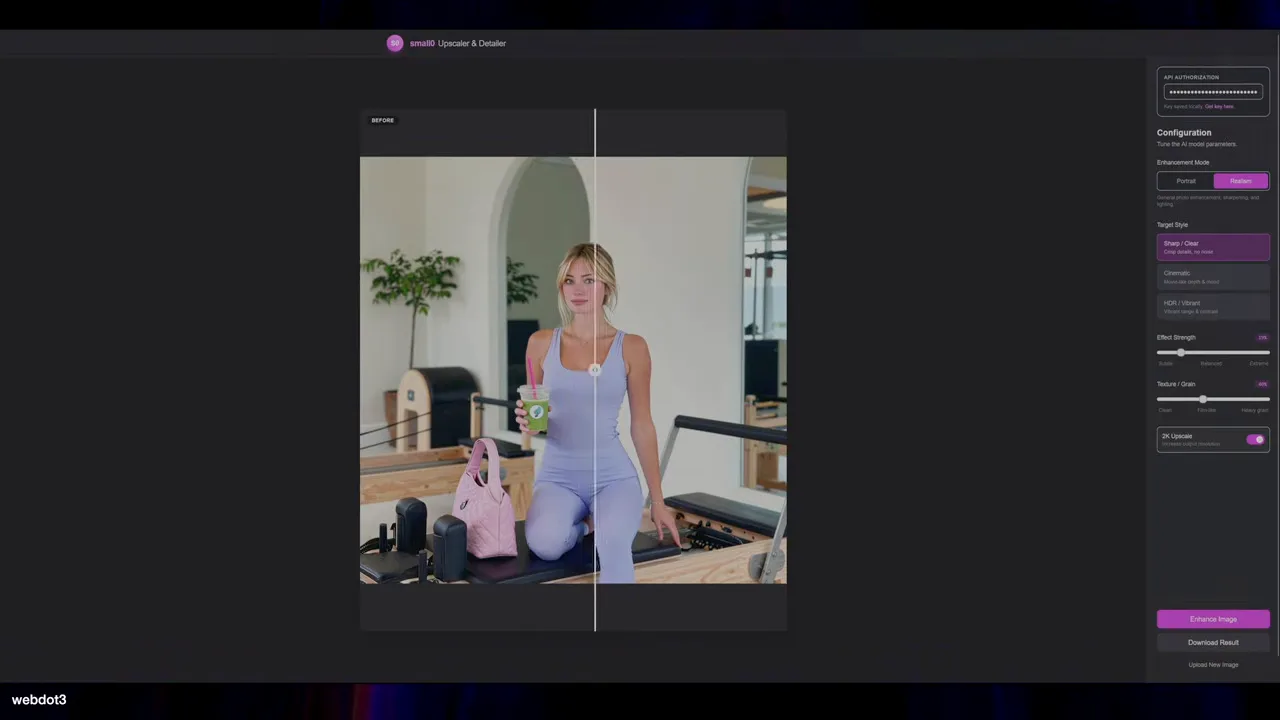
It's surprisingly good at rescuing bad inputs too. Fed a low-resolution, plastic-looking Stable Diffusion face pulled from Google, it rebuilt a believable portrait:
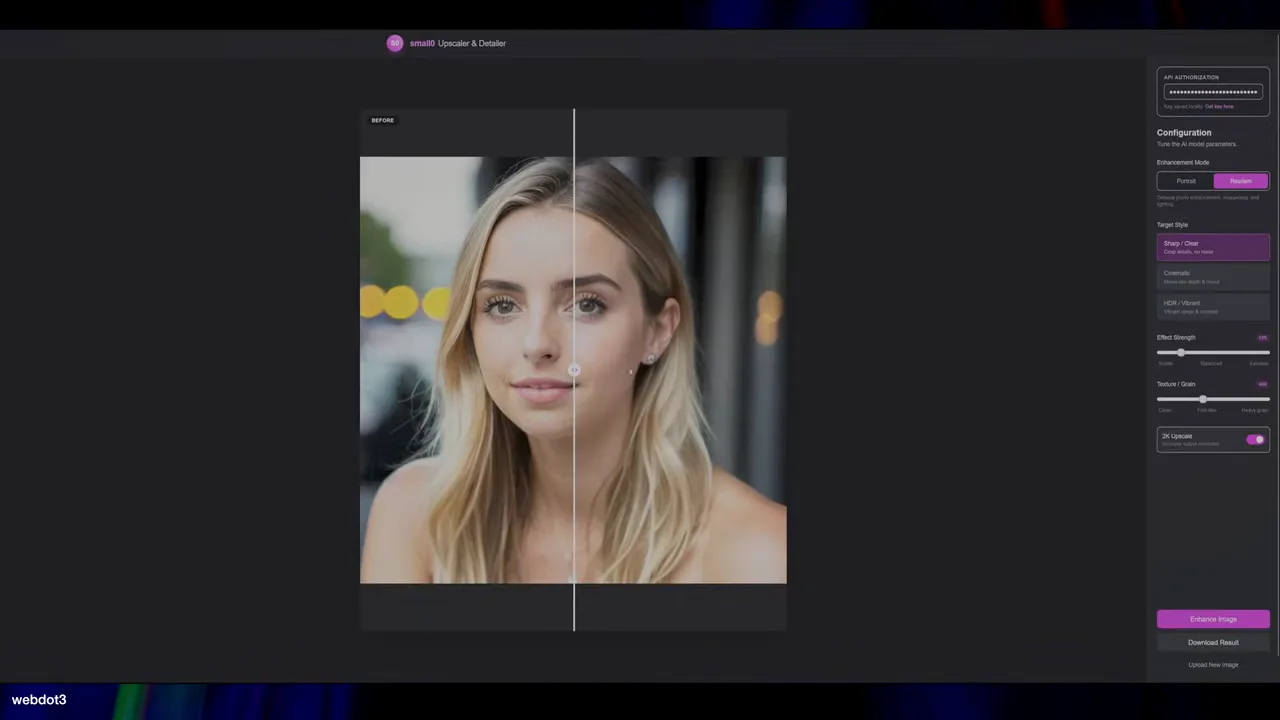
With very little information to work from, it can over-add detail — dial the effect strength down for tiny source images.
The short version
- Generate a varied dataset of one fictional character.
- Auto-caption it for the model you're training.
- Train in AI Toolkit: Z-Image, low VRAM, rank 84, 512px, trigger word matching your captions.
- Generate in ComfyUI and keep the best takes.
- Borrow poses from reference photos with Prompt Alchemy.
- Finish with a skin-realism and upscale pass.
Z-Image is still young and the LoRA scene around it is thin. Go train some, and share what you make.
$ ls ../related
$want the datasets, workflows and LoRAs behind posts like this?
they're shared inside the skool community. come join us.