Z-Image + Qwen-Edit: a consistent face workflow without training.
Z-Image gives you gorgeous skin and scenes, but on its own it only gets you a "sister likeness" — close, never quite the same person. Bolting Qwen-Edit onto the same workflow closes that gap.
Z-Image has quietly become a favorite checkpoint — after side-by-side tests against Wan 2.2, Nano Banana and Midjourney, it keeps producing realistic results that are hard to get as easily anywhere else. Its weak spot for influencer work is identity: without a LoRA, you can't lock a face.
This workflow fixes that without training anything. Z-Image renders the scene, then Qwen-Edit swaps in and blends your character's face, all in one ComfyUI graph.
01Get a "sister likeness" from the prompt
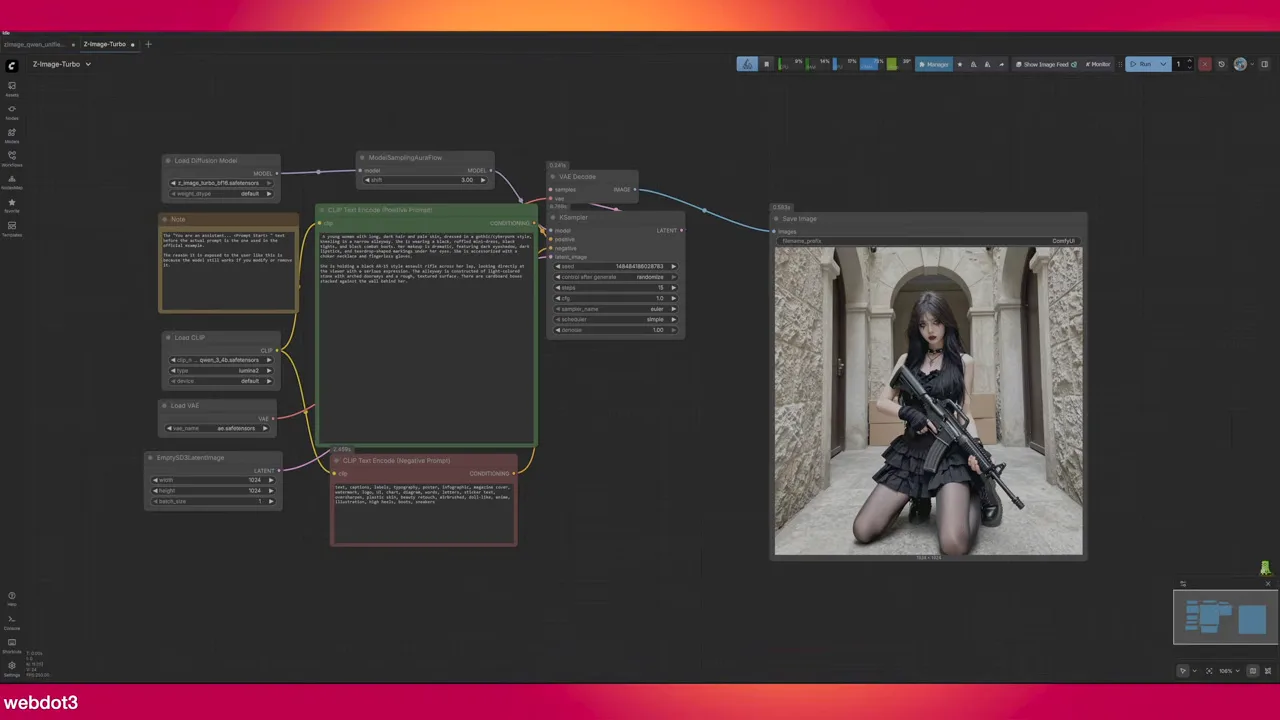
Before any editing, you can push Z-Image toward a consistent look with prompt structure alone. Open the prompt with the character — their looks, makeup, hair, pose — and only then describe the scene. Keep that opening block identical between generations.
The result is what people call a sister likeness: someone who could plausibly be your influencer's sister. Close, but not the same person. That's the starting point Qwen-Edit refines.
02Pick a face reference that fits the scene
The combined workflow takes two inputs: the Z-Image base render and a reference image of your character's face. The reference matters more than you'd think.
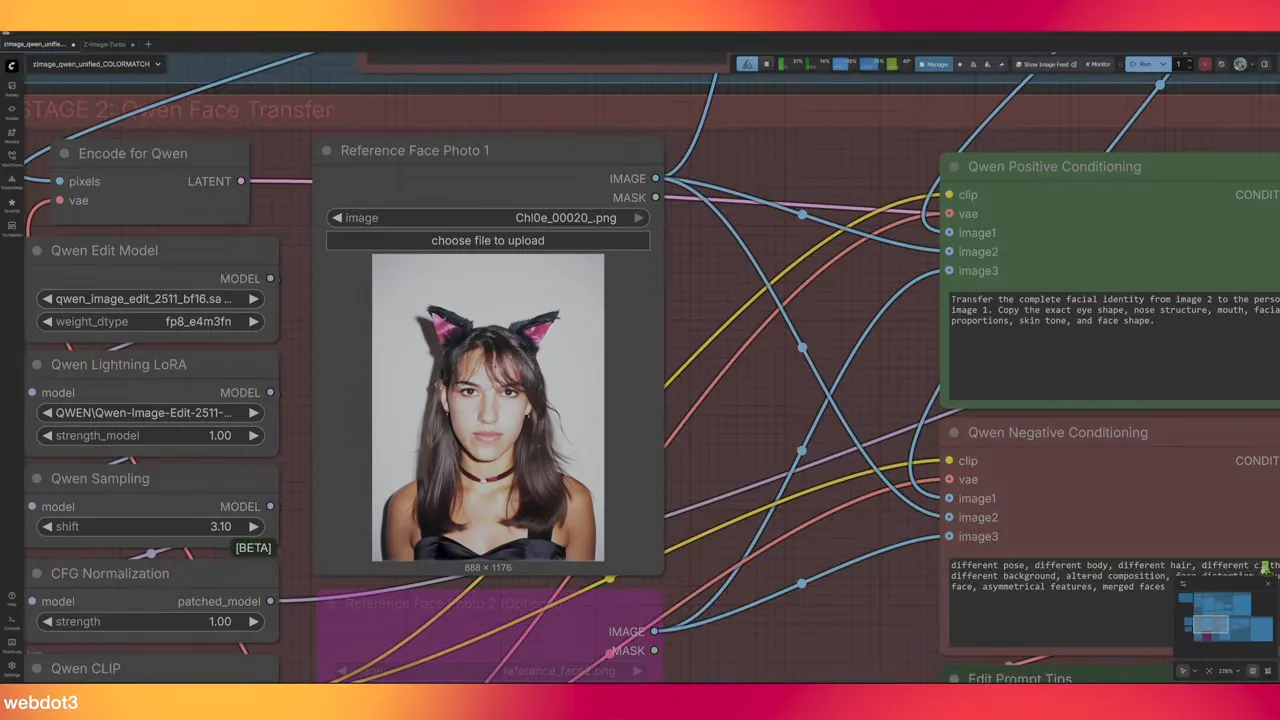
A reference with a very different hairstyle blends badly: the face looks too clean-cut, and the hair sits on top of the head instead of merging into it. Ears and hair are the hardest parts for Qwen to reconcile. The fix is simple — choose a reference that's broadly similar to the base image, especially the hair. They don't need to match, just be closer.
03Run the combined graph
Both halves run in one pass: the top group generates the Z-Image scene, the bottom group hands that render and your reference to Qwen-Edit for the face blend.
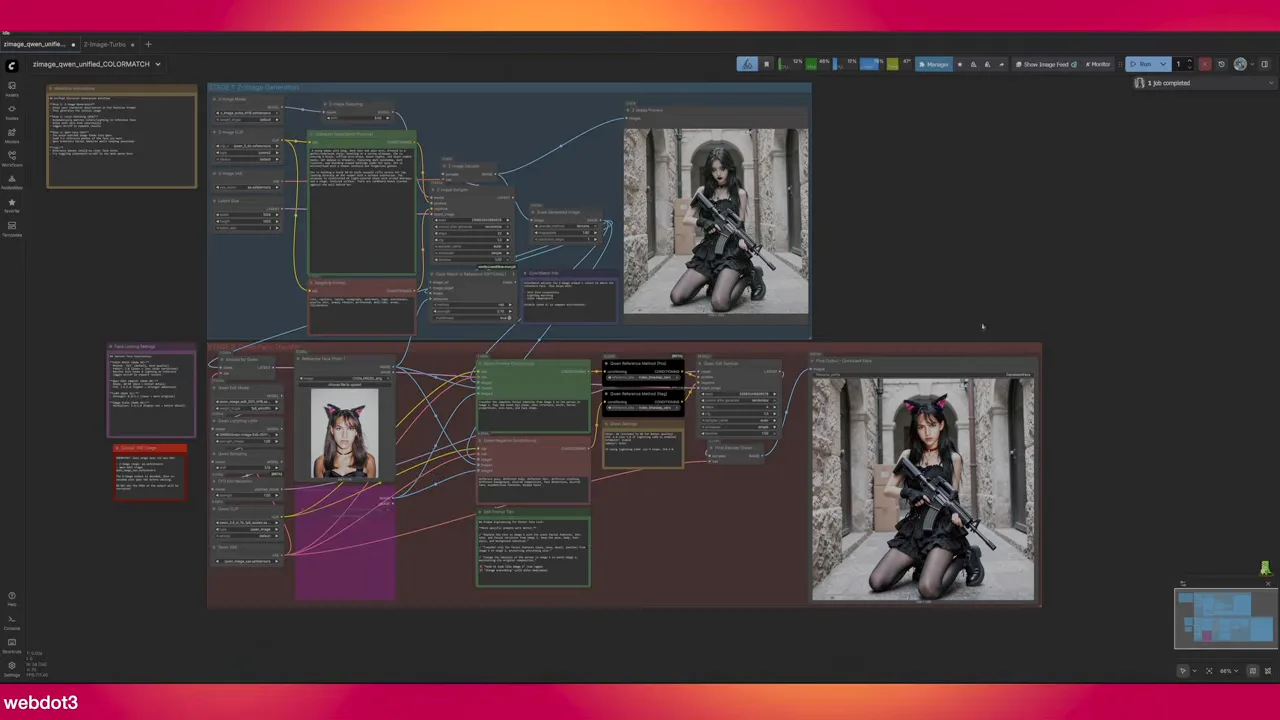
Expect the blend to struggle where the base image's lighting is extreme. In this example the original render was a bit blown out, so the swapped face didn't quite match the skin tone around it. That's what the next step is for.
04Fix the skin match with an upscale pass
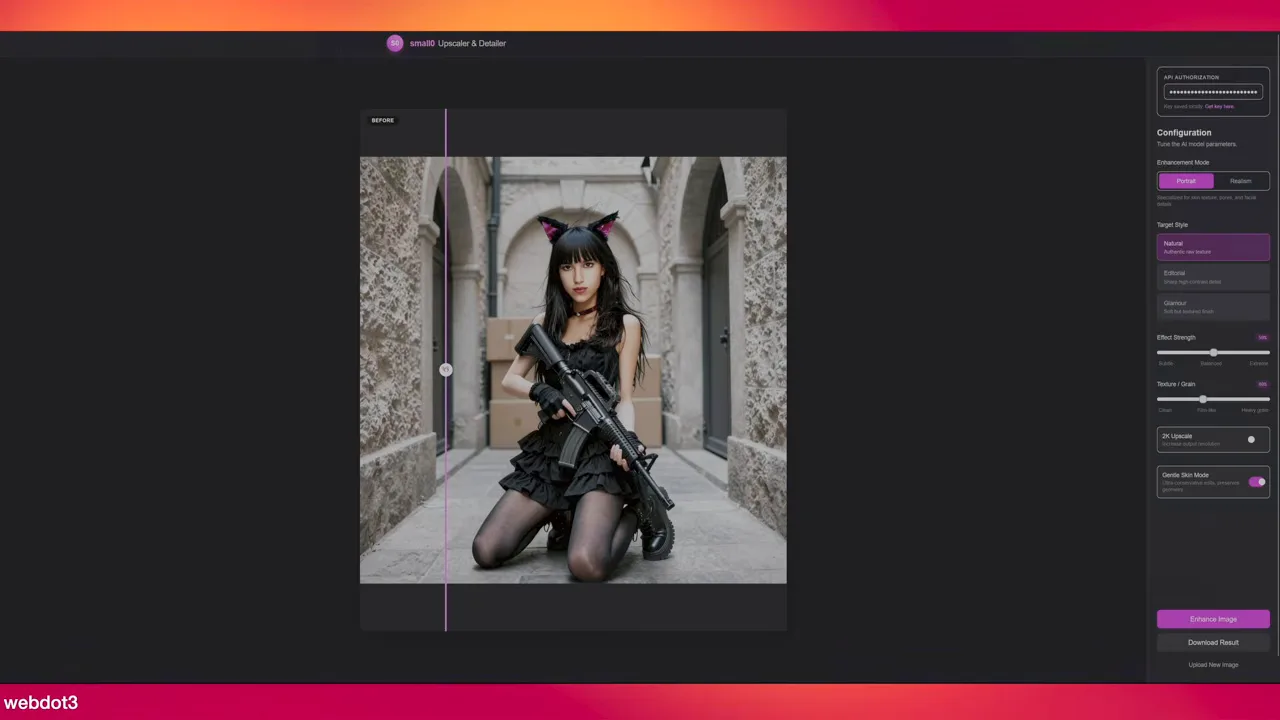
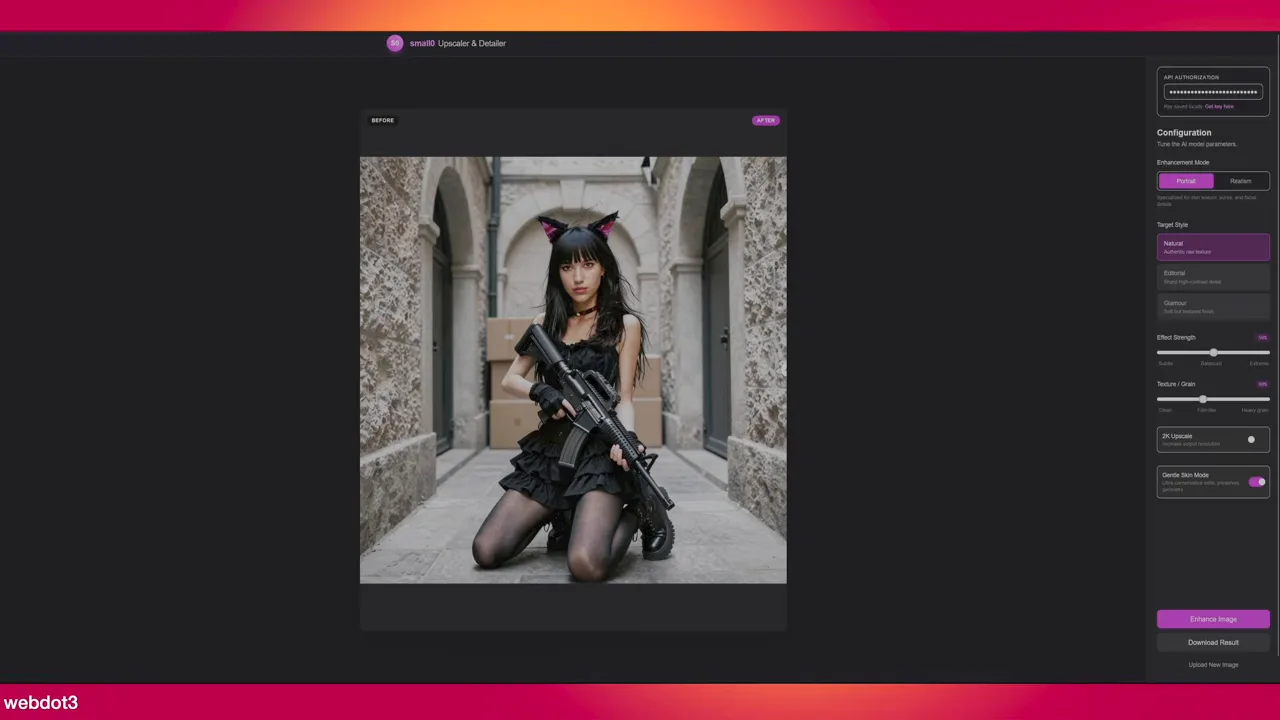
Face-blended images tend to look a little plasticky, with mismatched skin and light between the face and body. Running the result through the smallzero.io upscaler evens it out. It uses Gemini (with your own API key) to re-light and re-texture the skin so the face and body read as one photo.
05Lightning LoRA or 40 steps?
The workflow ships with the 4-step Lightning LoRA enabled for fast testing. To compare, bypass it and raise the quality settings:
| MODE | STEPS | CFG | NOTES |
|---|---|---|---|
| Lightning LoRA on | 4 | default | Fast. Good for iterating. |
| Lightning LoRA bypassed | 40 | 2.5–3 | Recommended when running without the speed LoRA. Much slower. |
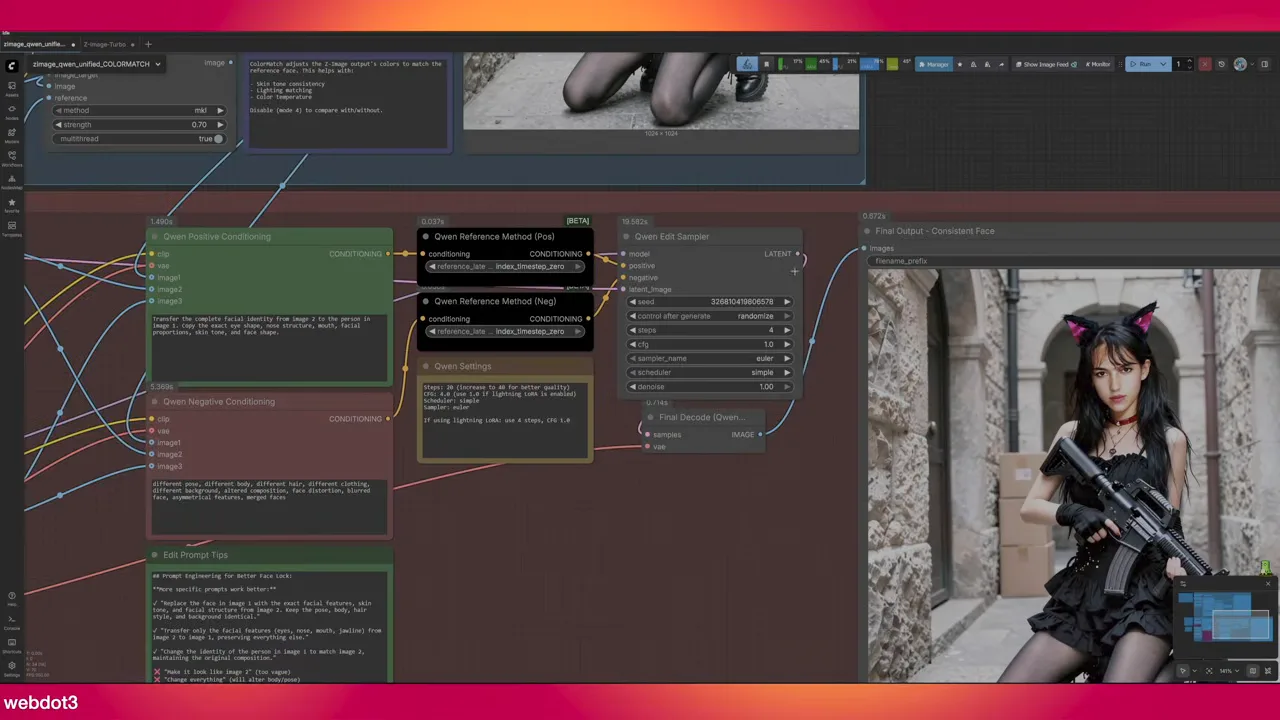
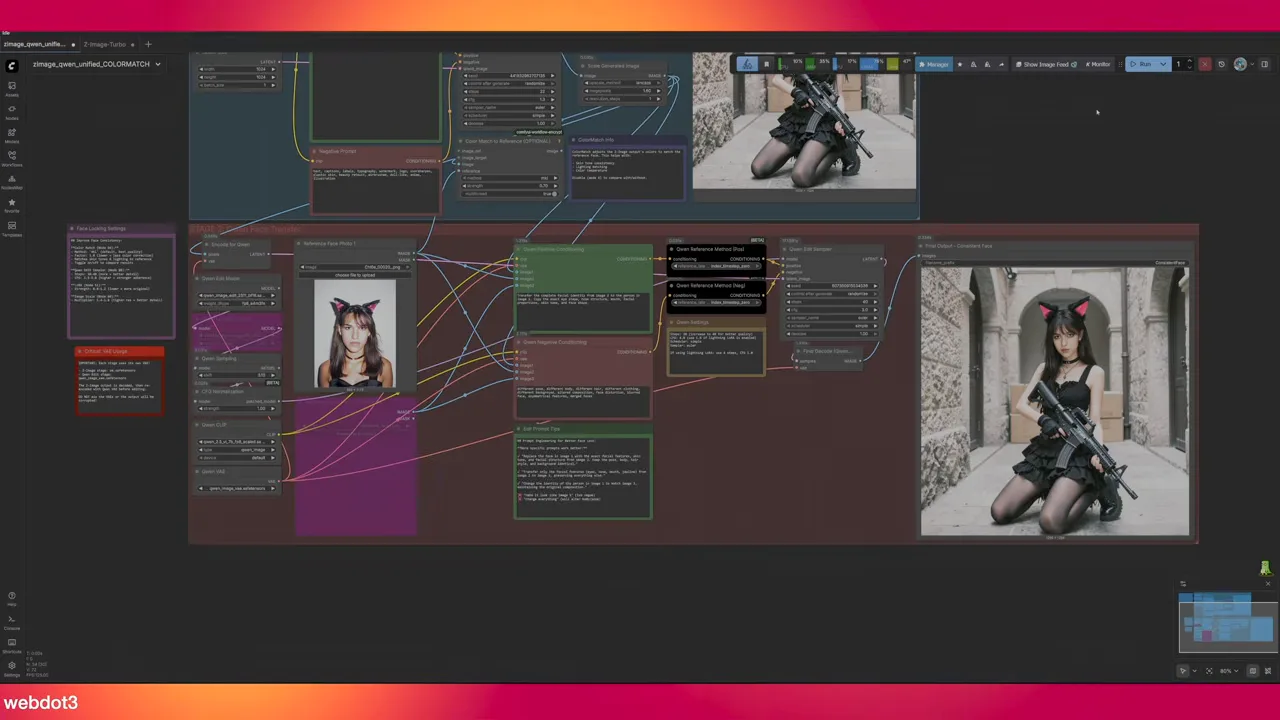
The verdict: the difference is small. The more efficient route is to keep the Lightning LoRA on and let the upscale pass handle the final realism.
Worth knowing
- The full Z-Image release is expected to recommend around 50 steps per generation, a big jump from today's 15 (or 4 with Lightning). Expect workflows like this to change when it lands.
- The Qwen-Edit half is the part with the most room to improve. If you tweak the blend, share what you find.
Prefer a locked face with no per-image swap? Train a LoRA instead — see consistent AI influencer faces with Z-Image.
$ ls ../related
$want the datasets, workflows and LoRAs behind posts like this?
they're shared inside the skool community. come join us.