MOSS Image in ComfyUI: skip the built-in workflow, use SFT.
MOSS Image is a new open model that makes candid, unpolished photos with faces you haven't seen a thousand times. The catch: the workflow built into ComfyUI gives nightmare results. Here's the setup that works, plus a community workflow that turns it into a full photo studio.
MOSS Image came out of nowhere and has been all over the AI image timeline: candid selfies, vintage-looking snapshots, and AI influencers that don't look like AI influencers. The faces are the big draw. They're unique and natural, not the same blonde-with-freckles "flux face" every model has been producing for two years.
It runs locally in ComfyUI. Getting good results comes down to one decision: which workflow you load.
01Get the SFT workflow, not the built-in one
ComfyUI ships a MOSS Image workflow. Don't use it. In testing it produced uncanny skin, warped faces and some genuinely haunting generations. Switching workflows fixed everything.
The one that works is the MOSS-Image-SFT workflow from the official OpenMOSS page on Hugging Face. The models are linked from there too.
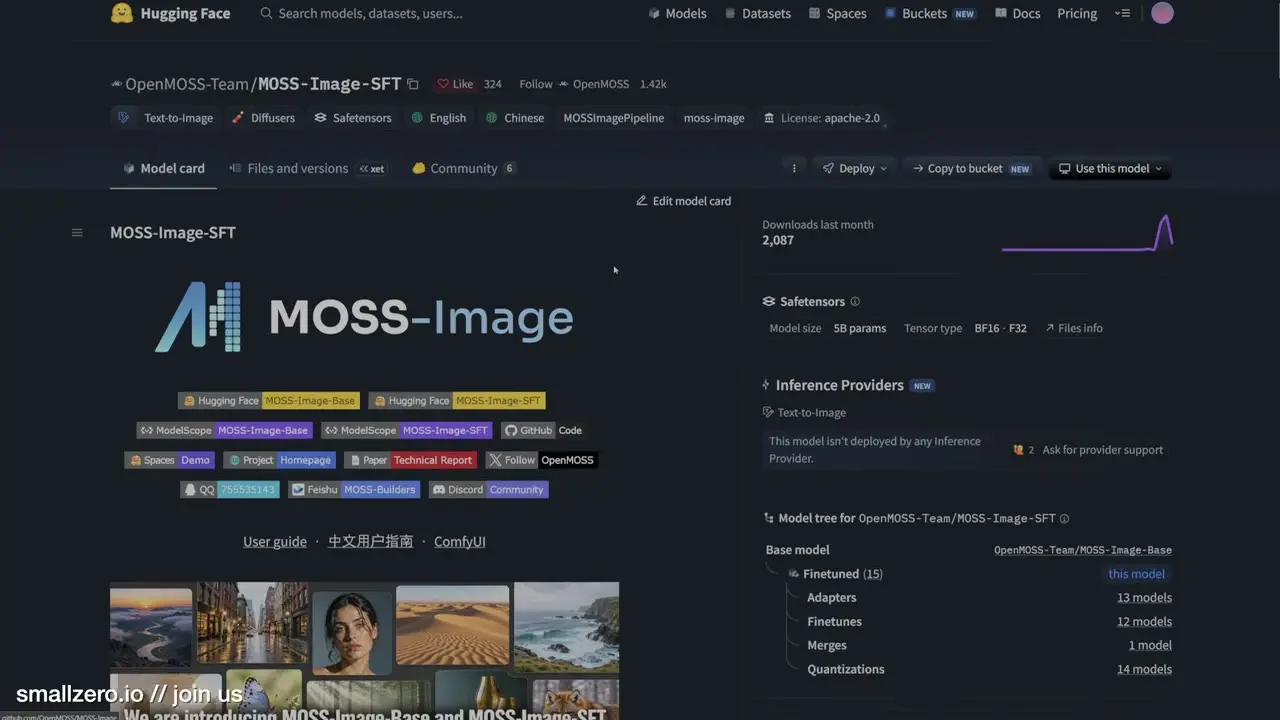
The fastest install: hand the page to an AI agent like Claude and ask it to set up everything the workflow needs in your ComfyUI folder. That's how it was done here, and it worked first try.
02Run a first test
The SFT workflow is simple: prompt in, image out. The first test was a casual selfie of a twenty-something influencer, and it already had what makes MOSS interesting: a face that looks like a person, not a model's average.
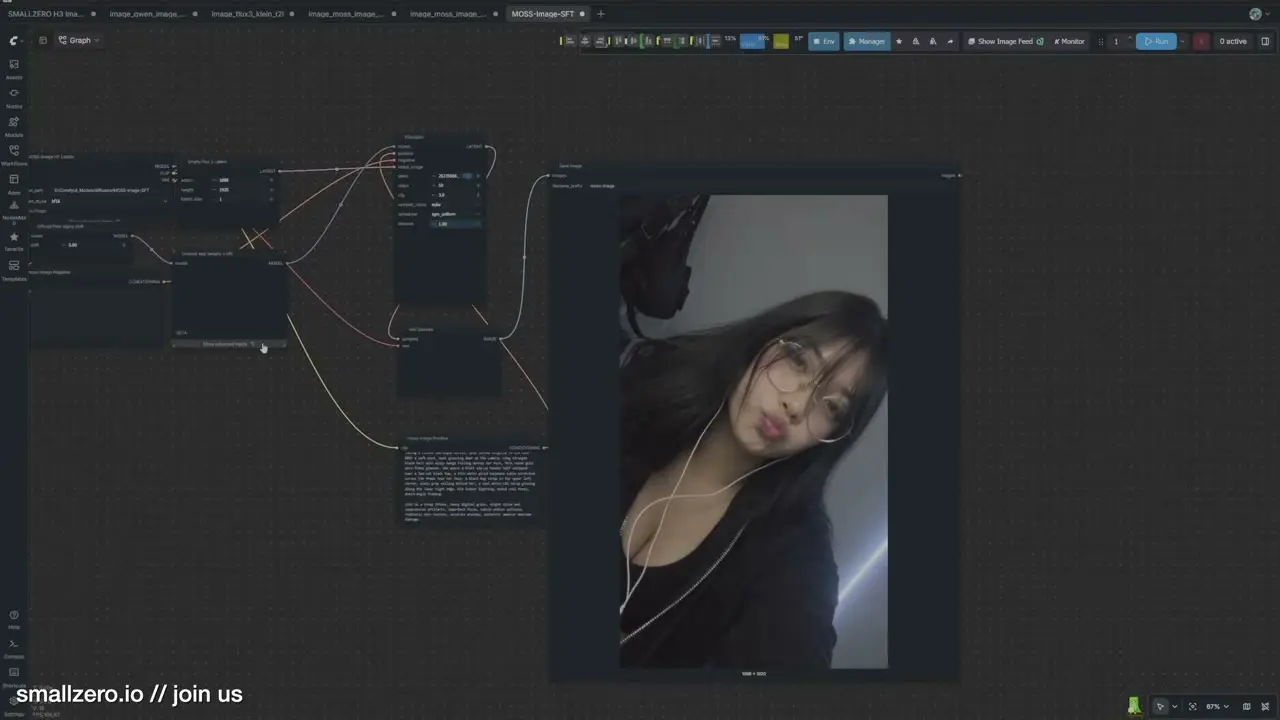
Settings used: 50 steps at 1080p, about 1.4 seconds per iteration on an RTX 5090 with 128GB of RAM. Fewer steps will be faster on smaller cards.
03Prompt like a cheap phone
The single most useful prompt trick: describe the camera, and make it a bad one. Ending prompts with something like shot on a cheap iPhone, heavy digital grain, slight noise and compression artifacts stops the skin going plastic.
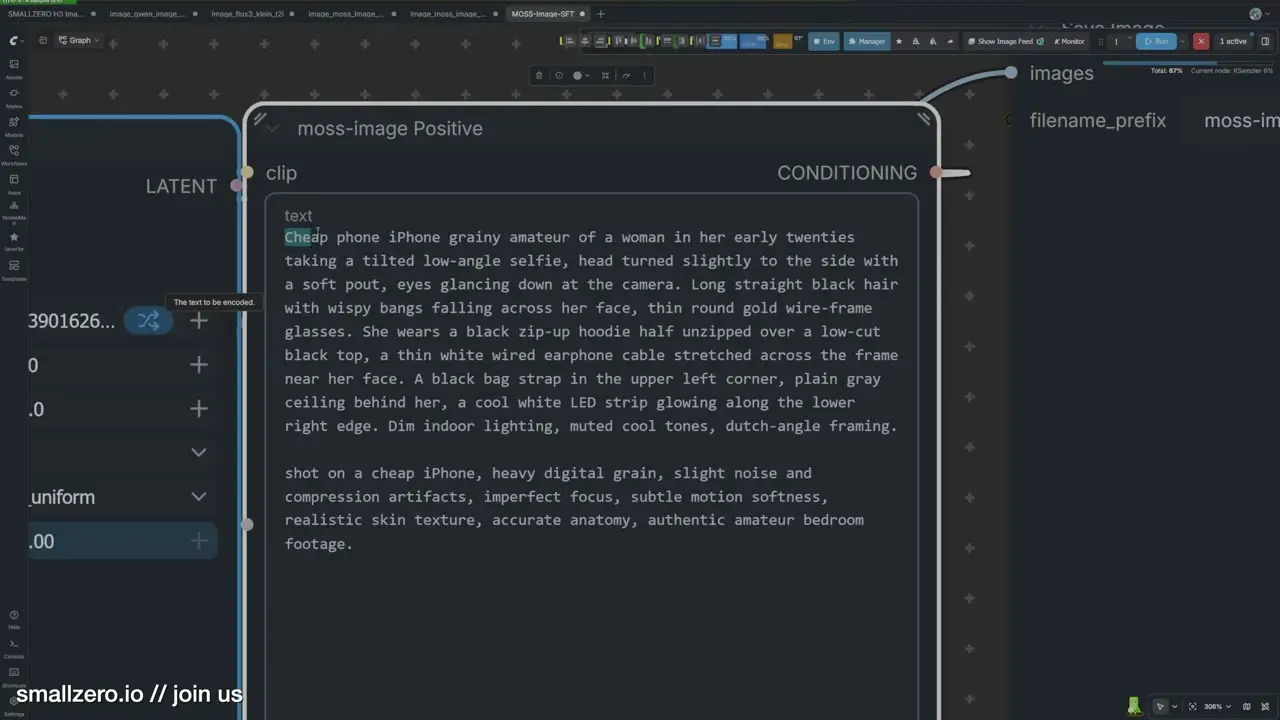
There's a style reason too. High-end photography reads as AI now, even when it's real. An older digital-camera look is more believable, and shooting on old digicams is a trend anyway, so mimicking it fits.
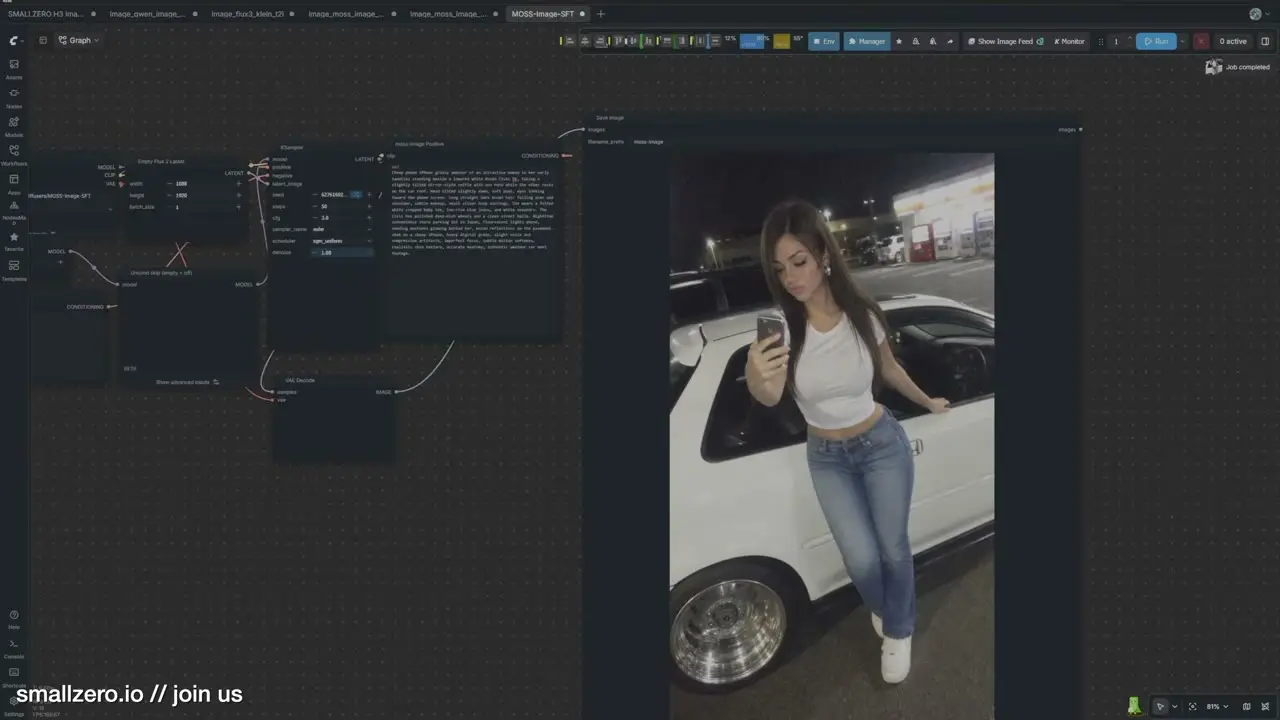
It isn't flawless. Car details drift (a logo on the door, a hood that sits too high), and hands can go wrong. But the aesthetic is different enough from other models that it's worth having in the toolbox.
04Upgrade to a community workflow
A community member has already built a full MOSS Image workflow that wraps the model in a proper control panel. The default steps are 25 for speed, with the INT8 model loaded; the run here used BF16 at 50 steps.
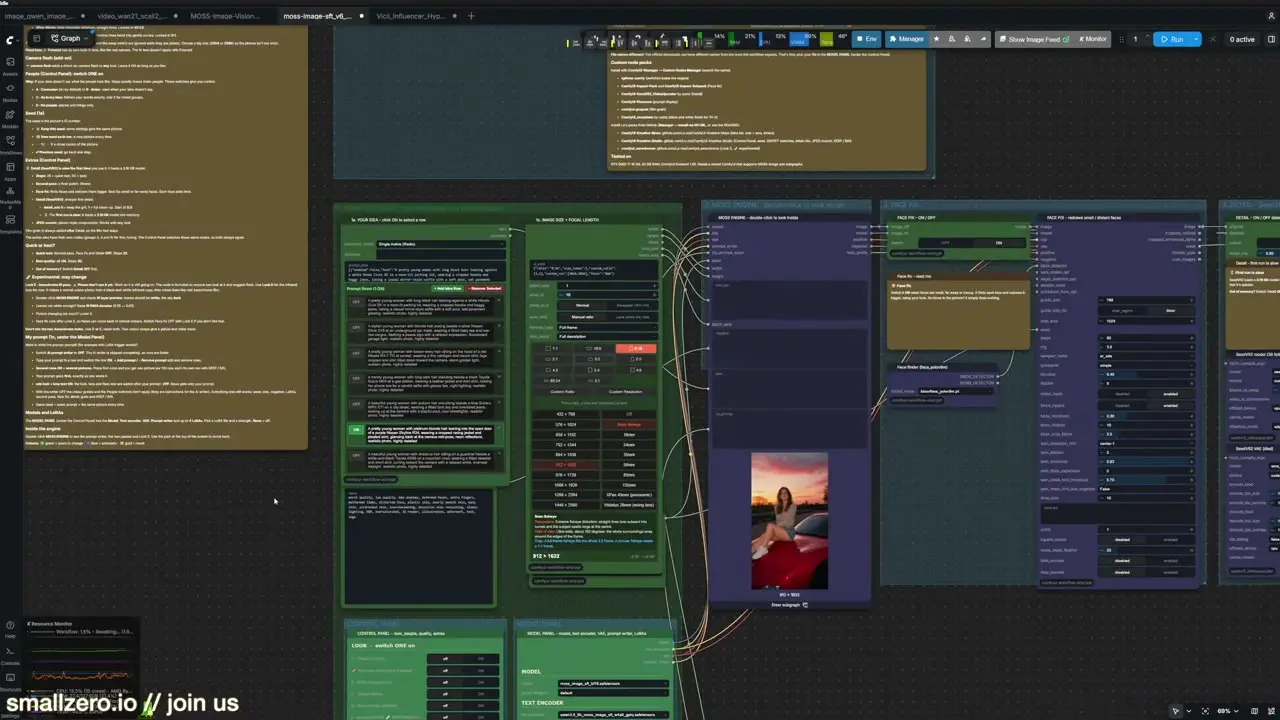
- Prompt queue: preload a batch of prompts and toggle each on or off, plus a preloaded negative prompt.
- Camera controls: focal length and lens filters (the 8mm fisheye is a favorite), aspect ratios with shape previews and a resolution selector.
- Film looks: cheap iPhone, Kodak Tri-X black and white, Polaroid, camera flash.
- Finishing: an AI prompt writer, face detailer and face fix, SeedVR2 upscaling built in, and LoRA slots.
- Quality of life: a preview before upscaling, a keep switch so test images don't flood your output folder, and a generation timer.
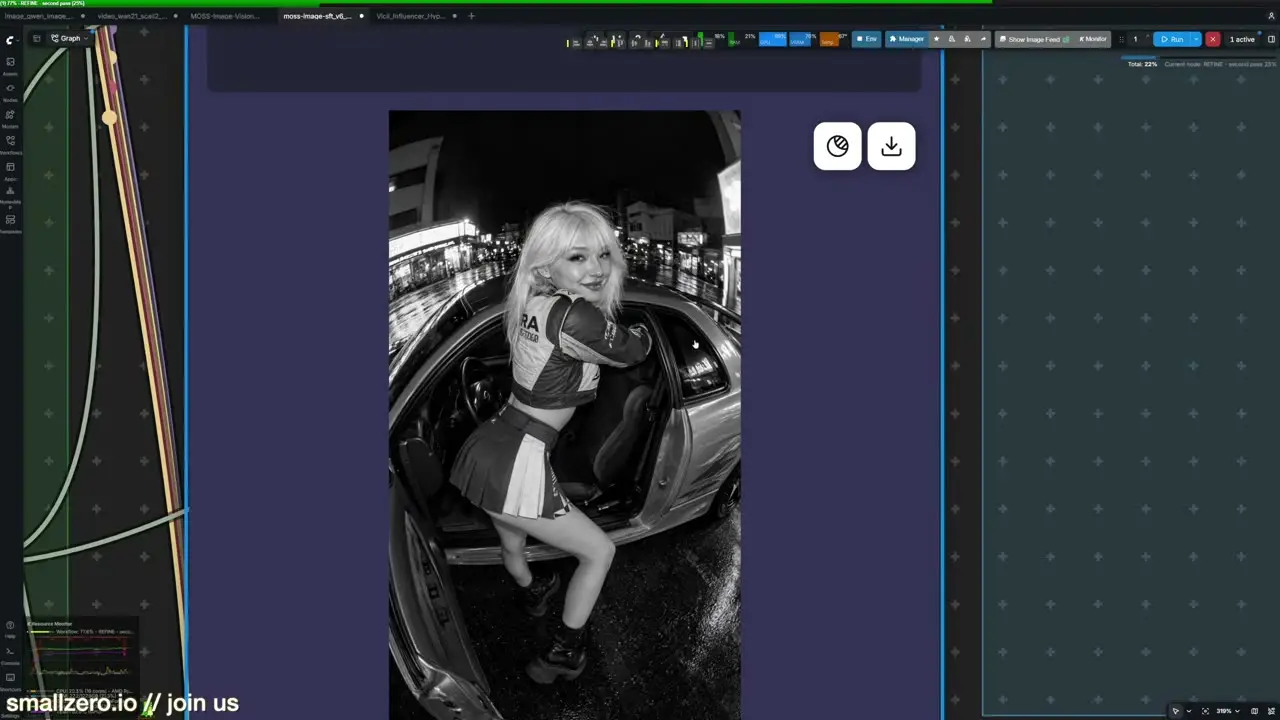
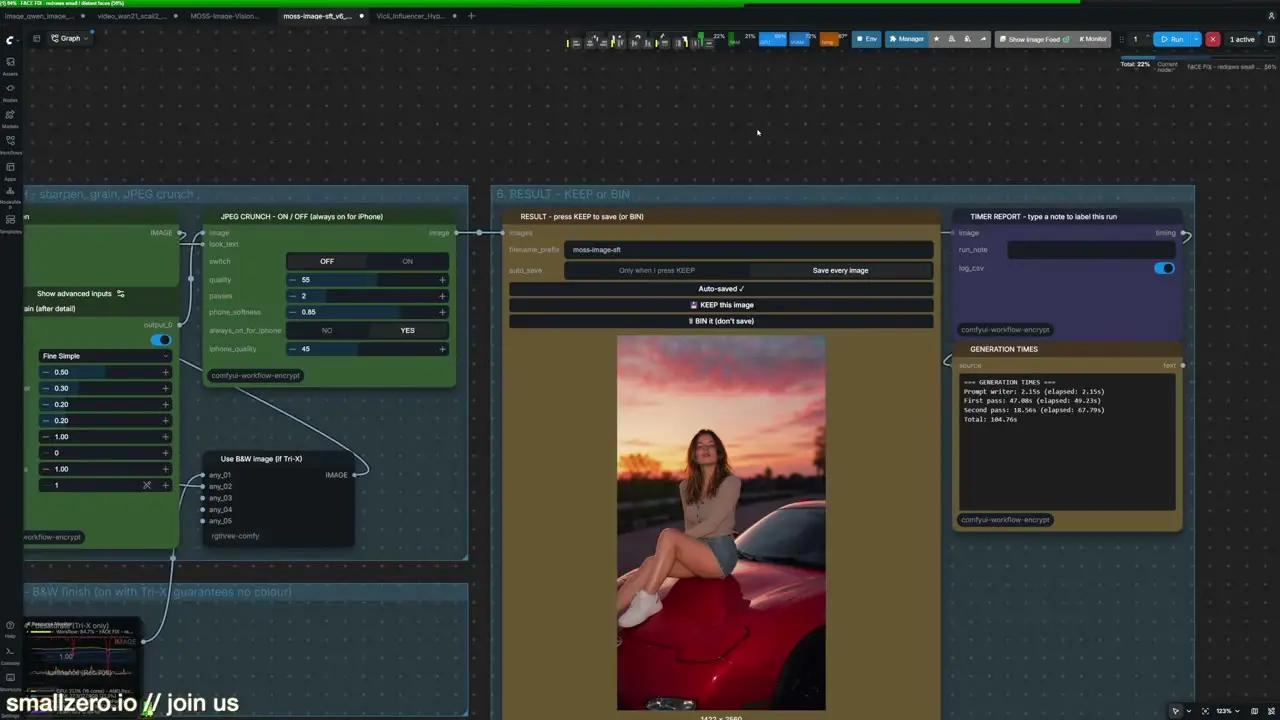
For all those features, it's laid out to be easy to follow, even if you're new to ComfyUI.
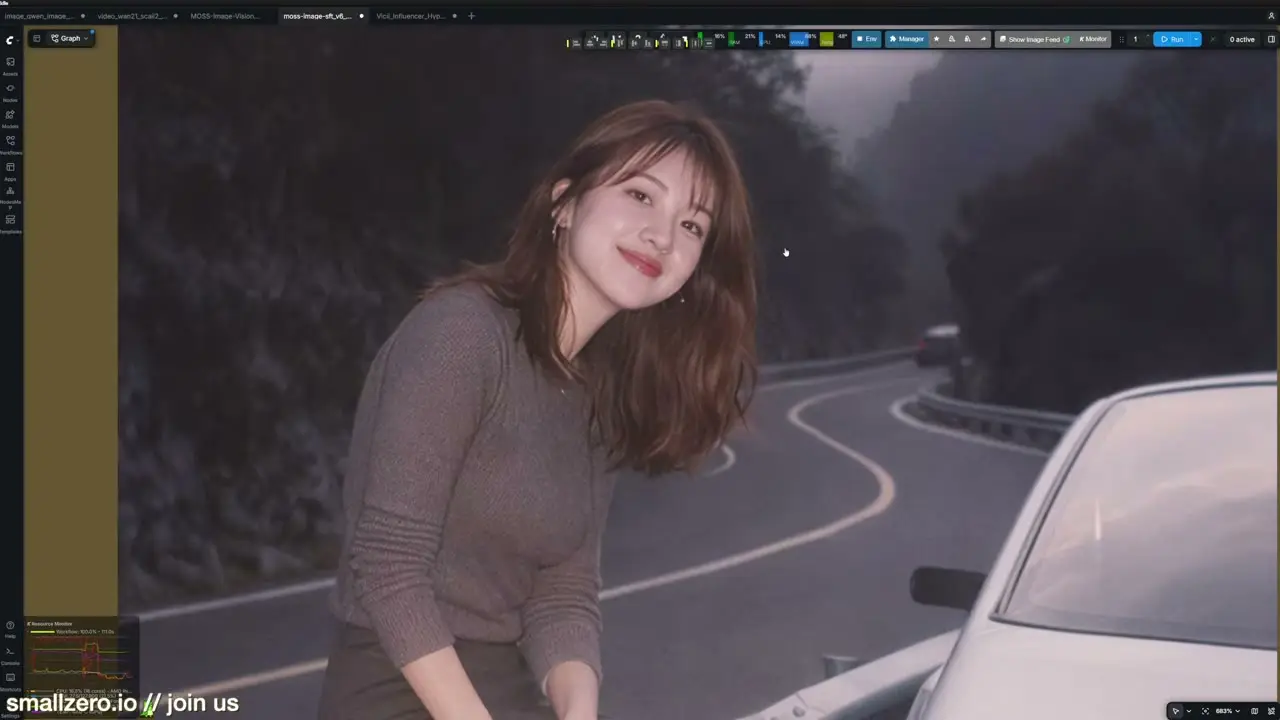
This workflow isn't in ComfyUI's library. Its creator shared it inside the members' Discord at smallzero.io, where you can ask him questions directly. Another member built a sibling workflow for MOSS face swaps without a LoRA.
Local models are fun again
Frontier image models feel like they've hit a wall lately (see the 12-model comparison), and then an open model like MOSS shows up with a look nobody else has. Load the SFT workflow, add a cheap-camera line to your prompts, and see what it does for your character.
$ ls ../related
$want the datasets, workflows and LoRAs behind posts like this?
they're shared inside the skool community. come join us.